Organizing Help Center topics and generating articles with AI
This picks up where Setting up the Help Center tab leaves off — the actual workflow for building out topics and articles, by hand or with AI.
Topics
A topic groups related articles together (e.g. "Shipping & Returns", "Payment"). Click Add topic to create one.
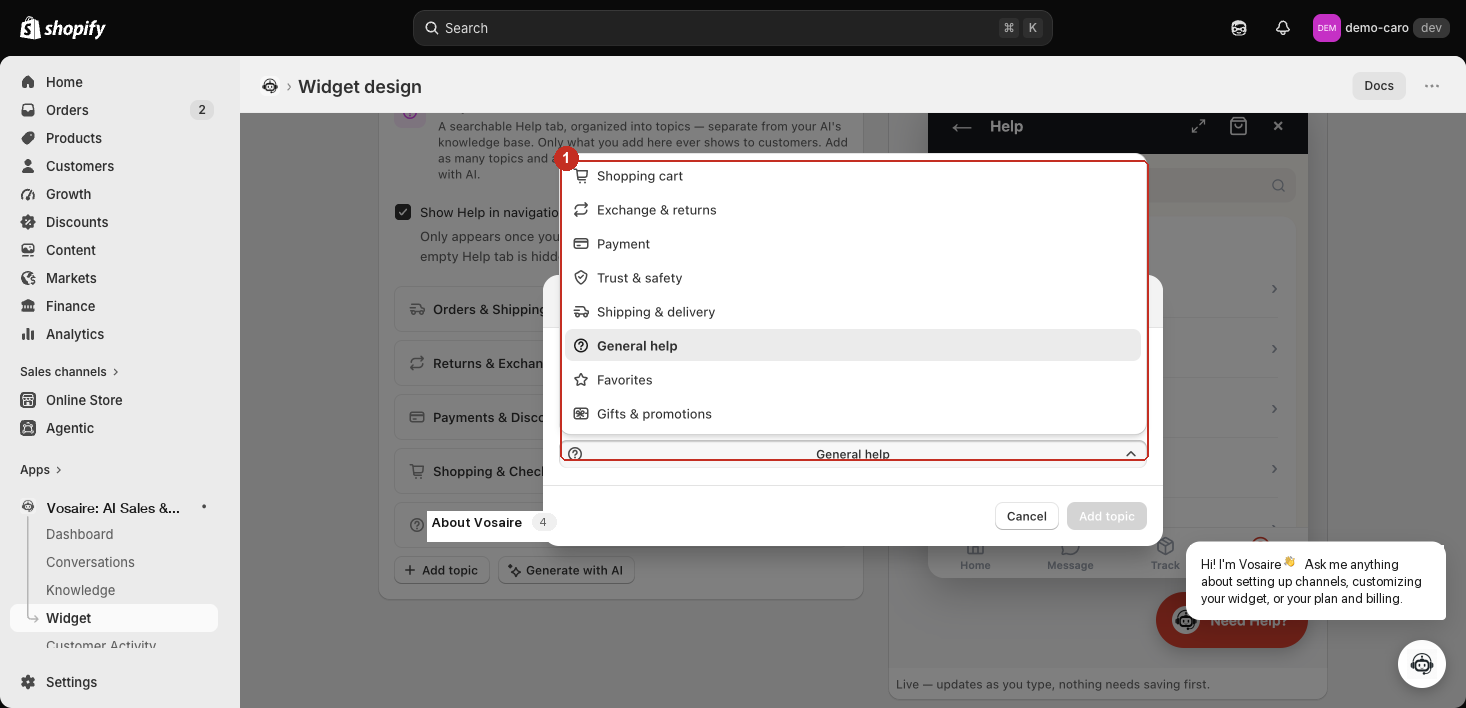
- Topic name — anything you want (e.g. "Shipping & Returns").
- Icon — pick from 8 built-in icons: Shopping cart, Exchange & returns, Payment, Trust & safety, Shipping & delivery, General help, Favorites, Gifts & promotions. Shown next to the topic name both here and in the customer-facing Help tab.
Removing a topic never deletes its articles. They move to Uncategorized instead, so you can't lose authored content by cleaning up your topic list.
Adding articles by hand
Click Add article under any topic (or under Uncategorized) to write one directly.
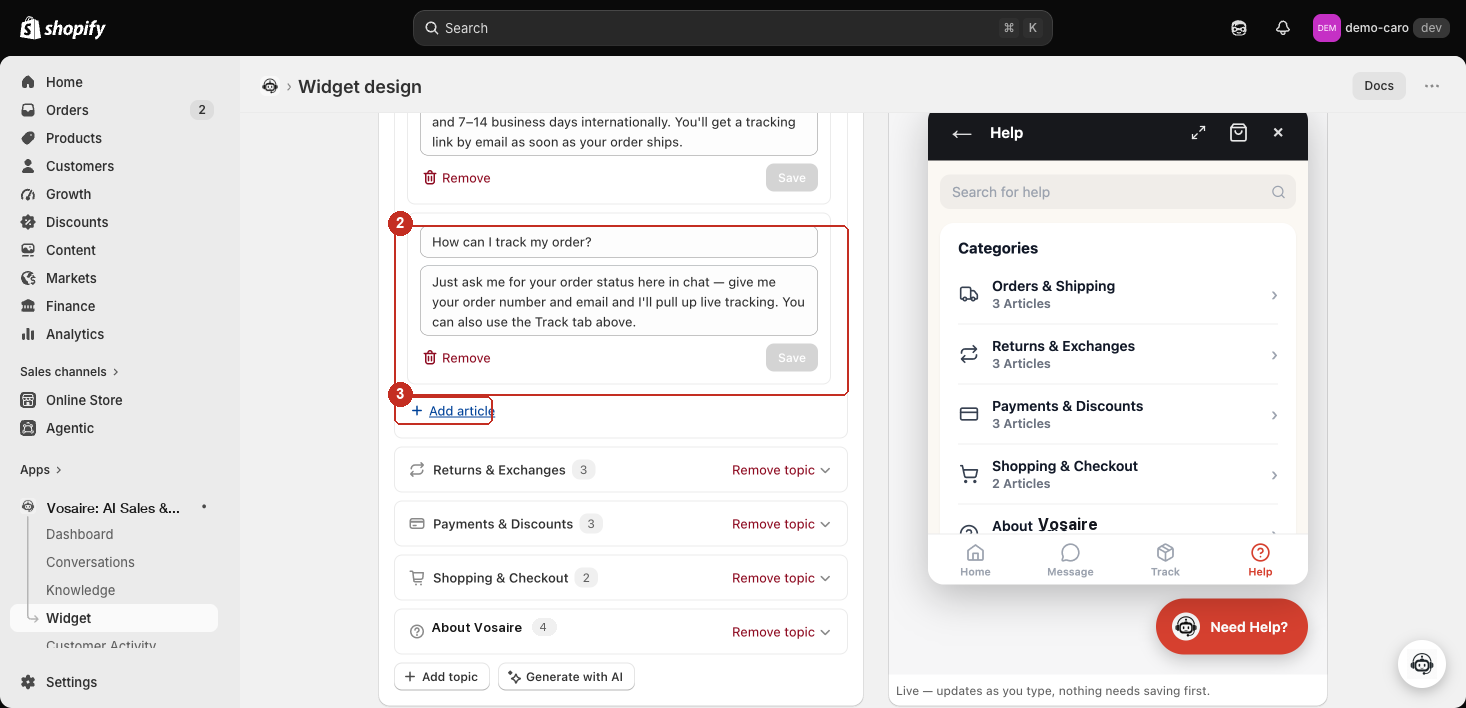
- The topic header shows an article count badge, and Remove topic to delete the whole group (articles survive, per above).
- Question and Answer — write both, then click Add. Nothing is saved (and nothing shows to customers) until you do.
- Add article — adds another draft under the same topic. A topic can hold as many articles as you need.
Once saved, an existing article's Question/Answer stay editable inline — change either field and a Save button appears; Remove deletes it immediately.
Generating articles with AI
Instead of writing articles one at a time, click Generate with AI to draft a batch at once.
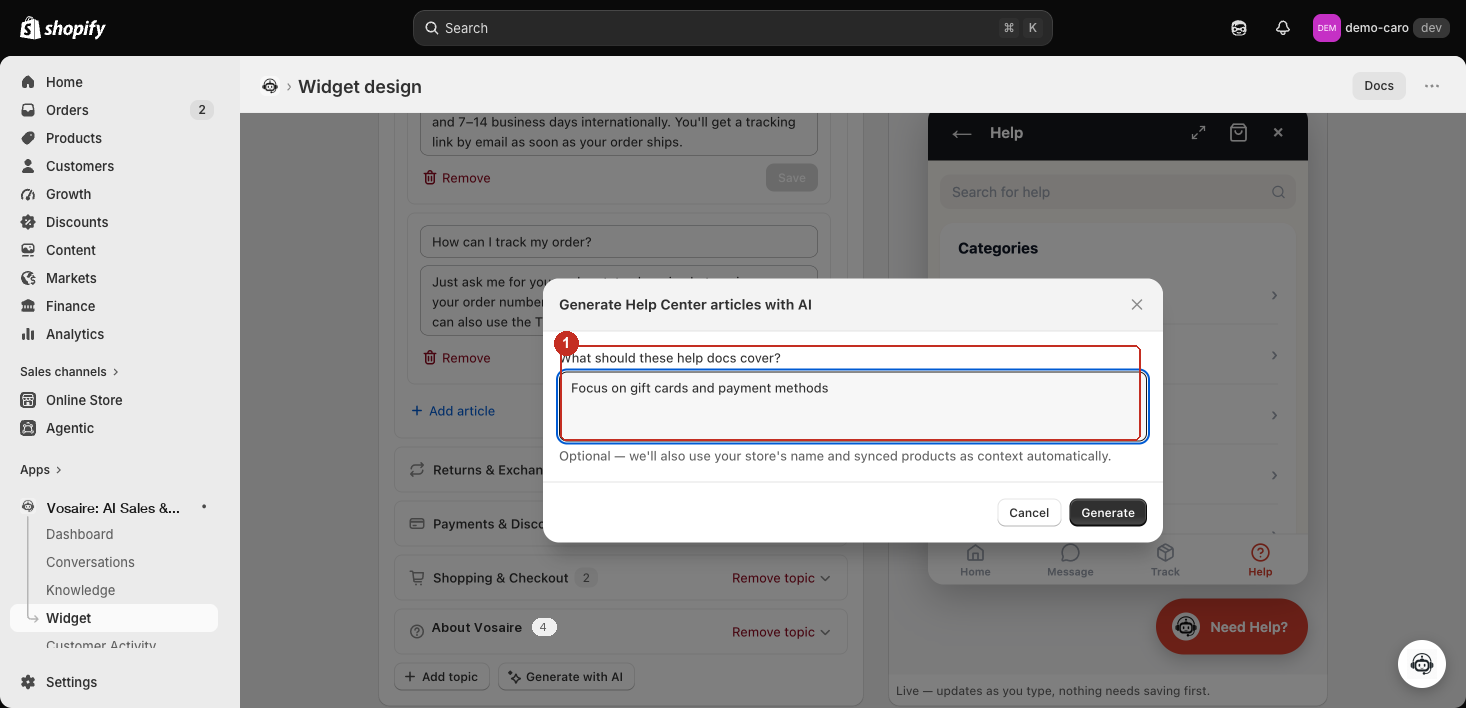
What should these help docs cover? is optional — leave it blank and Vosaire drafts from your store's name and synced products alone, or give it direction (e.g. "Focus on gift cards and payment methods") to steer what it writes about. Click Generate.
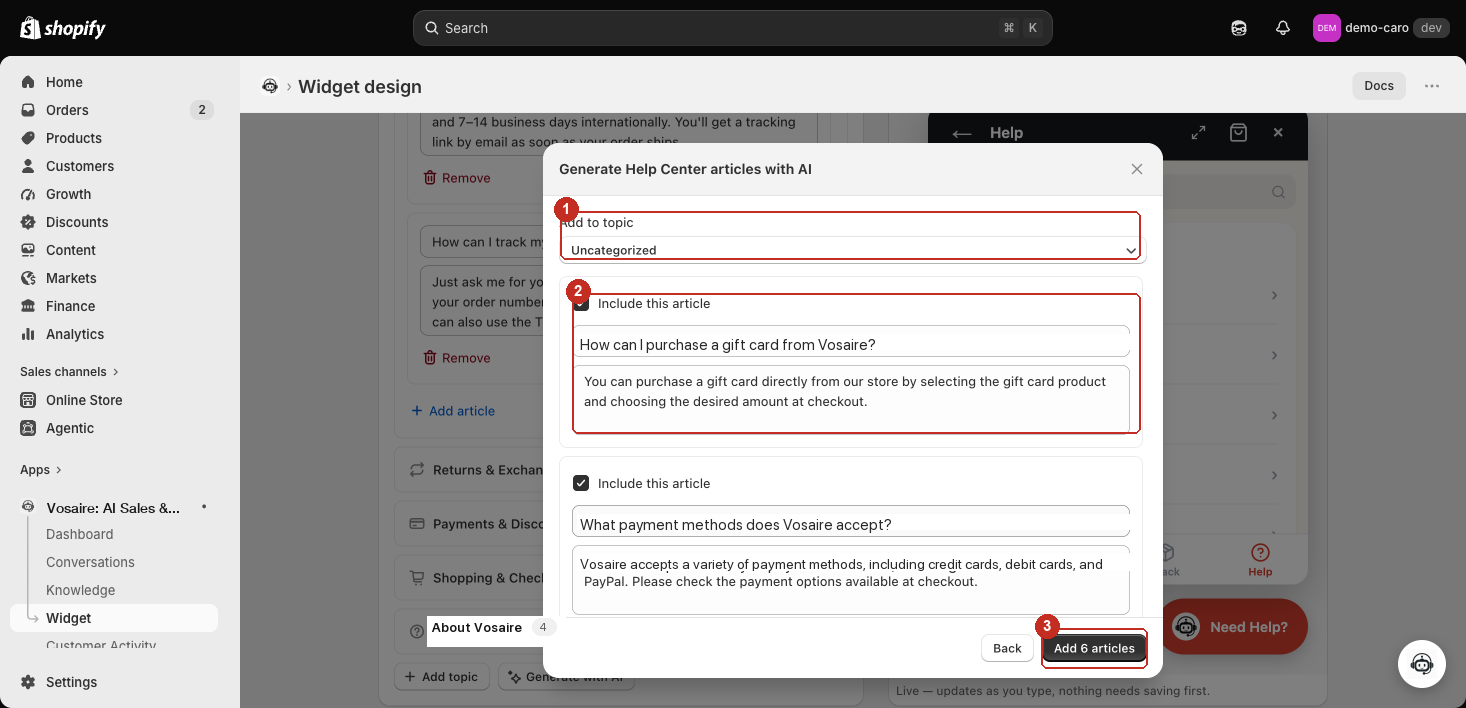
- Add to topic — where the batch lands: Uncategorized, any existing topic, or + New topic… (prompts for a name, creating it on save).
- Each suggestion has its own Include this article checkbox (checked by default) and editable Question/Answer fields — uncheck anything you don't want, or edit the wording before saving. Nothing is written until you save.
- Add N articles saves only the checked suggestions — the button label updates live as you check/uncheck. Click Back to change your instructions and regenerate instead.
This is a one-time draft, not a sync — generated articles become normal, independently editable entries once saved. Running Generate with AI again doesn't touch or duplicate anything you've already added.