Setting up the Help Center tab
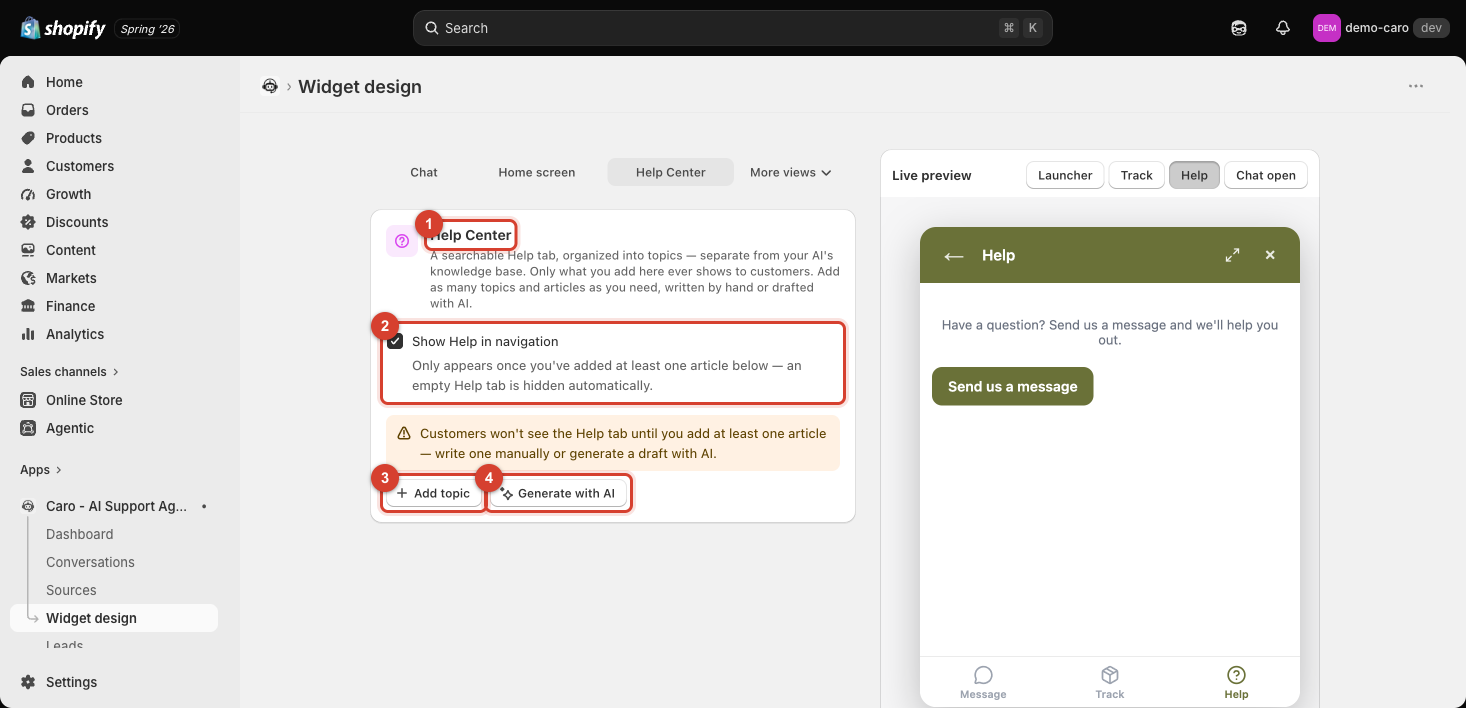
Go to Apps → Vosaire: AI Chatbot & Sales → Widget → Design → More views → Help Center. This adds a Help tab to the bottom navigation of the widget — a searchable, topic-organized help section that's completely separate from your AI's knowledge base (the Sources page).
Why this is separate from Sources
Sources feeds Vosaire's AI so it can answer freely in conversation. The Help Center tab is a fixed, curated set of articles customers browse directly — nothing here is used to train the AI, and nothing you haven't explicitly added ever shows to a customer.
Setting it up
- Toggle Show Help in navigation. This only actually shows the tab once you've added at least one article — an empty Help tab is automatically hidden, so there's no risk of shipping a blank page.
- Click Add topic to create a topic and write articles under it by hand, or click Generate with AI to have Vosaire draft topics and articles for you as a starting point (which you can then edit).
- Organize as many topics and articles as you need — there's no fixed limit mentioned in the UI, so structure it the way your own help center would be structured.
See Organizing Help Center topics and generating articles with AI for the full topic/icon picker and the AI drafting workflow.
What customers see
In the widget, customers reach this via the Help tab in the bottom navigation (alongside Message and, if enabled, Track). Until you've published at least one article, this tab stays hidden automatically.