Controlling which pages show the widget
Go to Apps → Vosaire: AI Chatbot & Sales → Widget → Design → More views → Behavior → Page visibility. By default the widget shows on every storefront page. This setting lets you restrict it to a specific set of pages, or hide it from specific pages, without touching your theme.
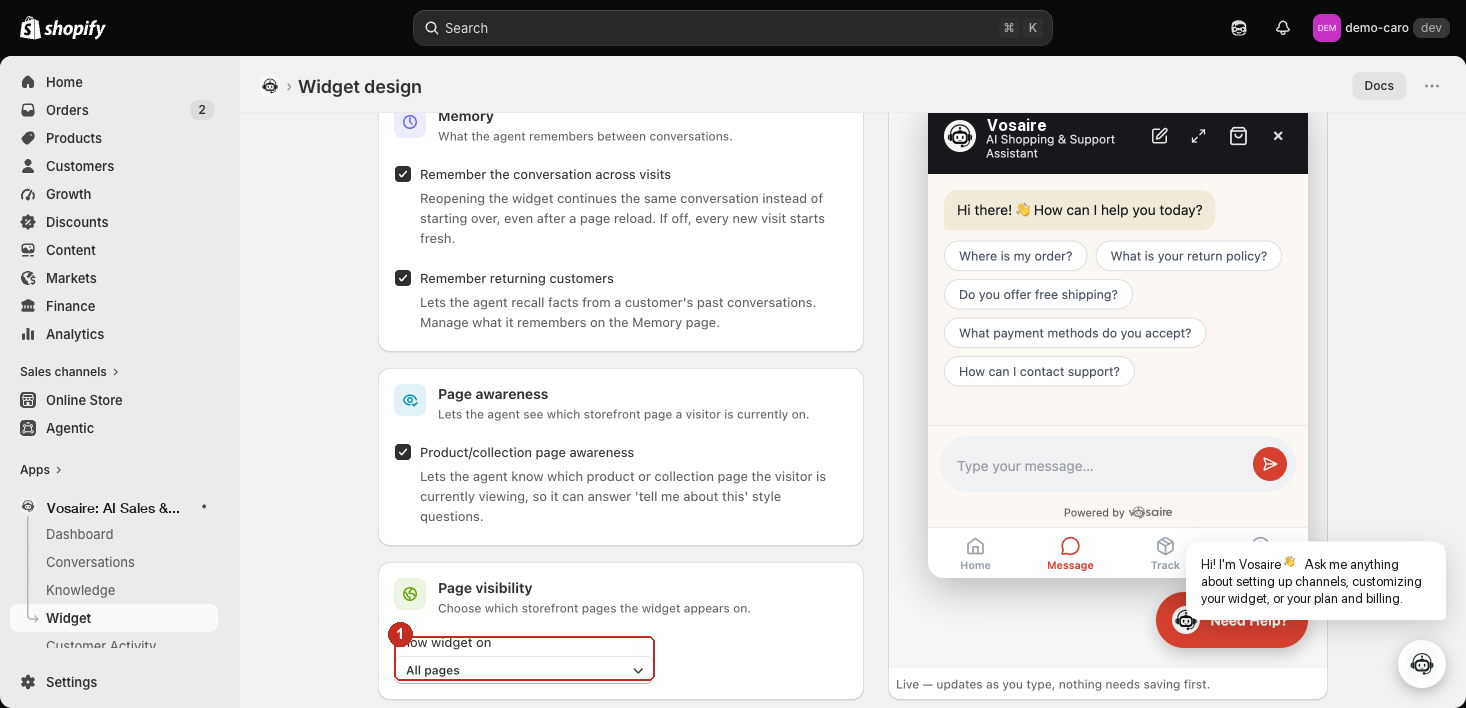
The three modes
Show widget on has three options:
| Mode | What it does |
|---|---|
| All pages (default) | The widget shows everywhere. No further setup. |
| Only these pages | The widget shows only on the pages you list — everywhere else, it doesn't load at all. |
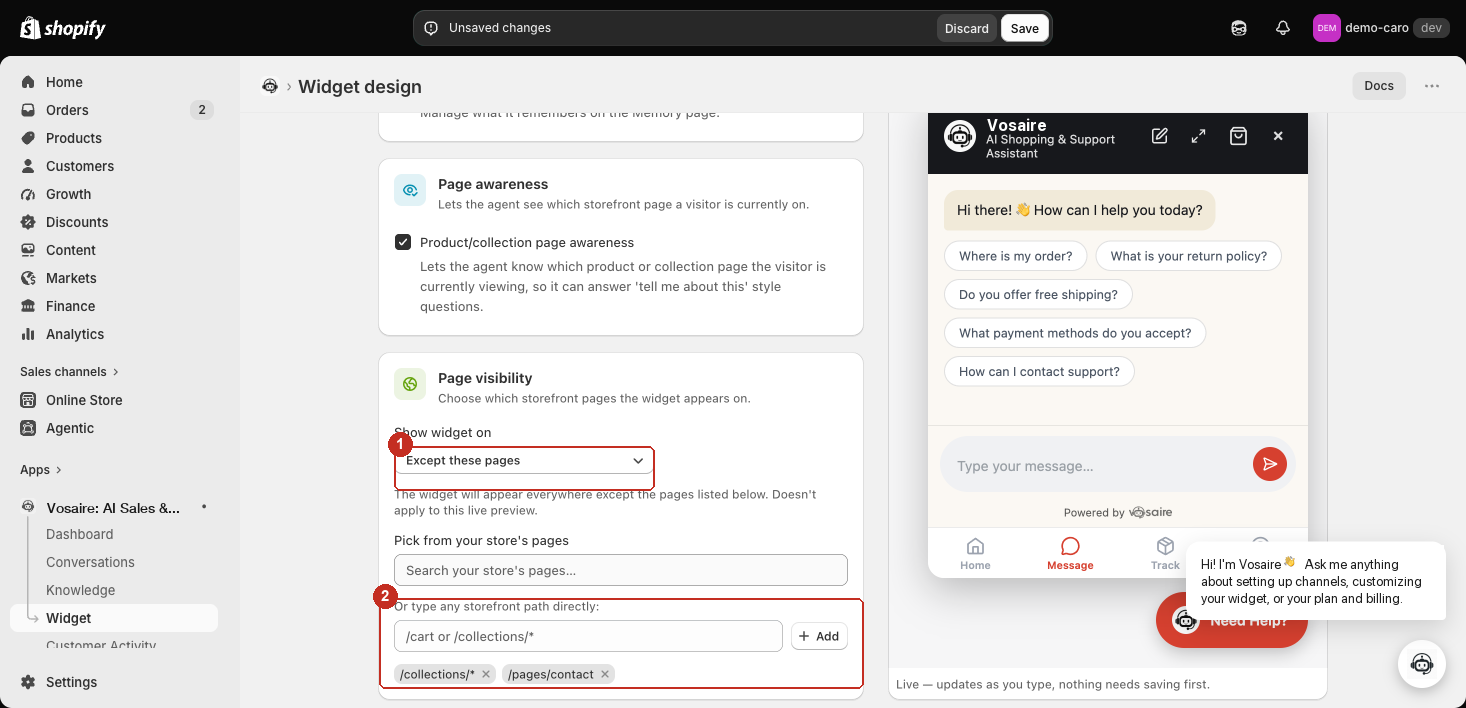
| Except these pages | The widget shows everywhere except the pages you list. |
Picking "Only these pages" or "Except these pages" reveals a page picker and a path list.
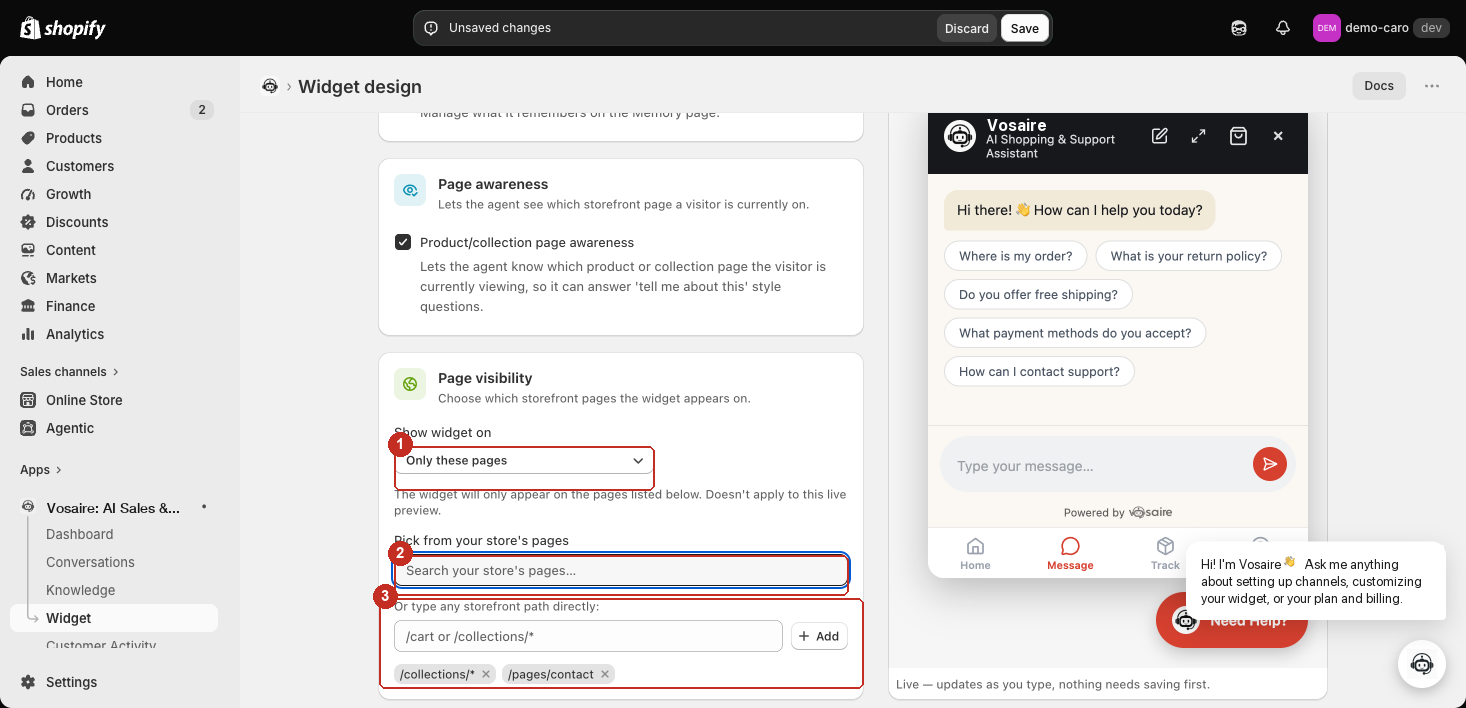
- Show widget on — switches between the three modes above.
- Pick from your store's pages — a searchable list of your store's actual Shopify pages (About, Contact, FAQ, etc.). Selecting one adds it as
/pages/<handle>. - Or type any storefront path directly — for anything that isn't a Shopify "page" (product pages, collections, cart, account, home). Type a path and click Add, or press out of the field to add it. Each path you add shows up as a removable tag below.
"Except these pages" works exactly the same way — just with the inverse meaning:
How path matching works
- A plain path like
/cartor/pages/wholesalematches only that exact page (ignoring a trailing slash, and ignoring anything after?or#). - Add a
*to match a group of pages instead of one:/collections/*matches every collection page,/products/*matches every product page. - You can paste a full URL (
https://yourstore.com/pages/faq) — the domain is stripped automatically and only the path is kept. - Matching is case-insensitive.
The empty allow-list trap
If you pick Only these pages and don't add any paths, you'll see a warning: with no paths added, the widget won't appear anywhere on your store. This is a real, working state, not an error — it just means nothing has been allow-listed yet. Add at least one page or path before saving.
Things to know before you use this
- This doesn't apply to the Live preview panel — the preview always renders regardless of these rules, so you won't see the widget disappear there while testing. Check your actual storefront to confirm a rule is working.
- Changes need Save — like every other setting on this page, page visibility rules only take effect on your storefront after you click Save in the top bar.
- This only controls whether the widget loads on a page — it doesn't affect anything else about how Vosaire behaves (training, actions, channels are unaffected).
Common uses
- Except these pages to hide the widget from a private or unlisted page (e.g. a wholesale/B2B landing page where you don't want AI chat).
- Only these pages to run the widget on a single campaign or landing page during a launch, without it showing up store-wide yet.