Setting up the Order tracking tab
Go to Apps → Vosaire: AI Chatbot & Sales → Widget → Design → More views → Order tracking. This gives customers a Track tab in the widget's bottom navigation, letting them check an order's status and shipping progress directly — no need to type a message and wait for a reply.
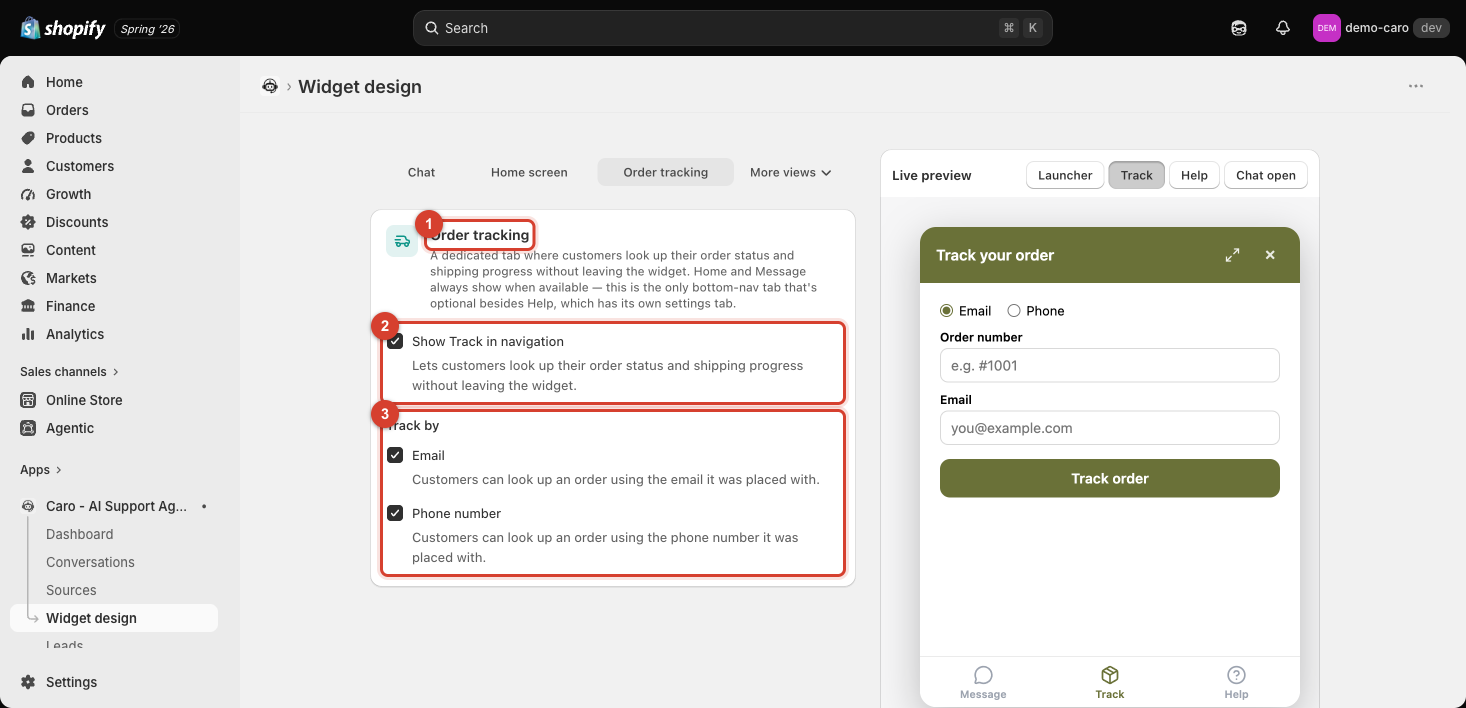
Enabling it
Toggle Show Track in navigation. Message and Home always show when available — Track (like Help) is optional and only appears once turned on.
Track by
Choose how customers can identify their order:
- Email — the customer looks up an order using the email it was placed with.
- Phone number — the customer looks up an order using the phone number it was placed with.
Both can be enabled at once — the live preview shows a toggle between Email and Phone, plus an Order number field, so customers only need two pieces of information to track their order.
How this relates to the "Track my order" quick action
This tab is the destination customers land on either by tapping the Track icon directly, or by tapping the Track my order quick action card on the Home screen (see Setting up the Home screen) — both point to the same lookup form.