Blog / ChatGPT Ads / Guides
October 25, 2026
ChatGPT Ads Product Feed for Shopify: Requirements and Fixes
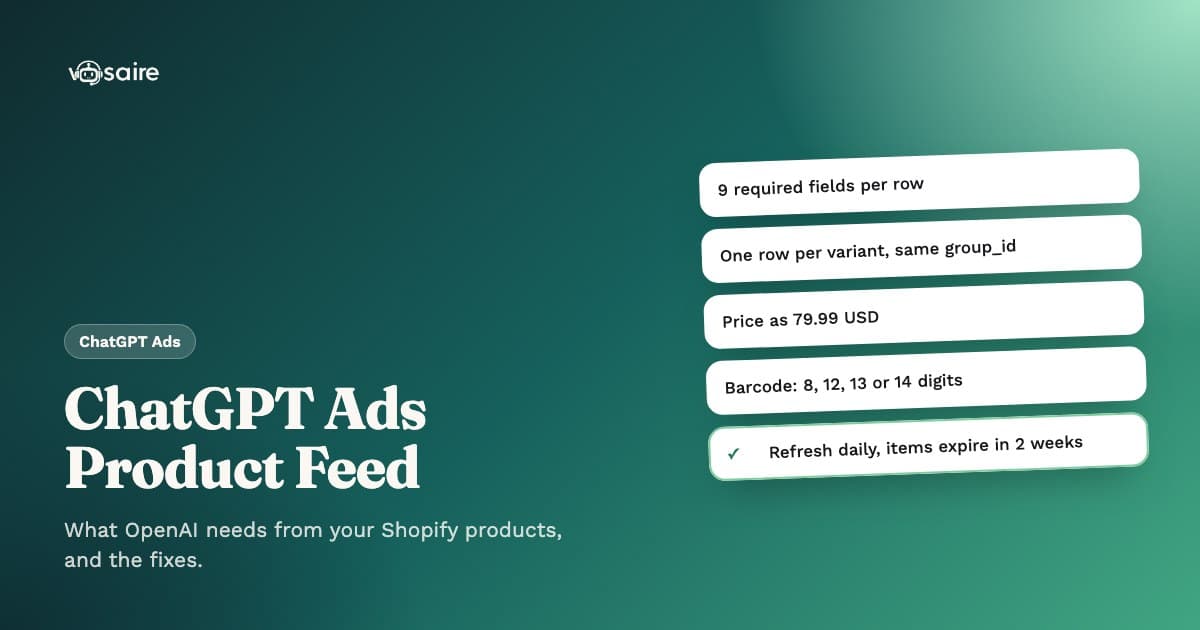
A ChatGPT ads product feed is a file of your products that OpenAI reads to build shopping ads. Every row needs nine fields (item_id, title, description, url, brand, seller_name, image_url, availability and price), each variant gets its own row tied together by a group_id, and products are only used for ads when is_ads_eligible is true. Most rejected rows come down to a handful of fixable mistakes: a price in the wrong format, an unrecognised availability value, a barcode with the wrong length, or an image URL OpenAI can't reach.
This guide walks through what the feed needs, how Shopify data maps onto it, the mistakes that get products dropped, and how to keep it current. If you haven't set up ChatGPT ads yet, start with how to set up ChatGPT Ads on Shopify.
Why the feed matters more than the ad
ChatGPT shopping ads are built from products, not from ad copy you write from scratch. When a shopper asks ChatGPT for "a waterproof jacket for hiking under $150", the products that can appear as sponsored cards are the ones in an advertiser's feed with a matching title, description, price and stock. A product that isn't in the feed, or whose row was rejected, can't be shown at all, however good the campaign is.
That makes the feed the first thing to get right, and the thing to keep watching. Prices change, products sell out, new ones arrive. OpenAI's help center says feed items expire after two weeks, so a feed you uploaded once and forgot will quietly empty out.
The nine required fields
OpenAI's product feed specification lists nine fields every row needs (OpenAI developer docs):
| Field | What it is | Where it comes from in Shopify |
|---|---|---|
item_id | A stable ID, unique per item or variant. Never reuse it for a different product. | The variant ID |
title | The product name, including the variant when relevant. At most 150 characters. | Product title + variant options |
description | A factual description in plain text. At most 5,000 characters. | Product description, with the HTML removed |
url | The product page, with the variant selected where possible | Product URL + ?variant= |
brand | The brand as shown on the product page | Vendor |
seller_name | The name of the store selling it | Your store name |
image_url | A direct, public link to the main image of this variant | Variant image, or the product's main image |
availability | Stock status | Inventory, mapped to OpenAI's values |
price | The regular price, as amount CURRENCY | Variant price + store currency |
Two more fields matter for ads specifically:
is_ads_eligiblemust betruefor every product you want ads to use. If it's missing, ads are off for that product unless the feed sets a default. It's separate from whether a product can appear in ChatGPT's organic shopping results.gtin(a barcode) isn't on the required list, but it helps OpenAI match your product to what shoppers ask about. Add it wherever you have one.
Variants: one row each, joined by a group ID
A t-shirt in three sizes and two colours is six rows in the feed, not one. Each variant row has its own item_id, price, availability, URL and image. To tell OpenAI they belong together:
- Give every row of the product the same
group_id, and make it different from everyitem_id. The Shopify product ID works well. - Set
listing_has_variationstotrueon each row. - Add a
variant_dictwith the options, for example{"color":"Black","size":"10"}, using the same option names across the group.
Skip the group_id and each variant is treated as an unrelated product. Reuse a variant's ID as the group ID and the grouping fails.
The formats that get rows rejected
These are the details OpenAI's spec is strict about. Each one is easy to get wrong when exporting from Shopify by hand.
Price. Write it as the amount, a space and a three-letter currency code: 79.99 USD. Use a decimal point, no thousands separators, and no more decimals than the currency allows. 1,299.00 USD, $79.99 and 79.99 all fail. A sale_price is only used if it's above zero, strictly below price and in the same currency.
Availability. It must be exactly one of in_stock, out_of_stock, pre_order, backorder or unknown. A blank or unrecognised value rejects the row, and unknown doesn't count as in stock. Shopify's own "Continue selling when out of stock" setting needs mapping to backorder or in_stock on purpose, not left blank.
Barcode (GTIN). Exactly 8, 12, 13 or 14 digits with a valid check digit, with leading zeros kept and no spaces or dashes. UPC-A and ISBN-13 work; ISBN-10 doesn't. If a product has no barcode, leave the field out. Don't make one up, and don't put a SKU in it. Keep it as text in spreadsheets, or the leading zeros disappear.
Images. image_url must be a direct, public HTTPS link to a JPEG or PNG of this variant. Shopify's CDN links work. Links that need a login, point to a page instead of an image, or come from a password-protected development store won't.
Text. Keep titles under 150 characters and descriptions under 5,000, as plain text. Strip Shopify's HTML from descriptions, and don't stuff titles with keywords: OpenAI's spec asks for the product name, and shoppers see it on the ad card.
A pre-upload checklist
Before you send a feed, or when products go missing from Ads Manager, check:
- Every product you want to advertise has
is_ads_eligibleset totrue. - Every row has all nine required fields filled.
- Prices are
amount CURRENCY, with no symbols or commas. - Availability uses one of the five allowed values, and sold-out variants say
out_of_stock. - Variants share a
group_idthat's different from their own IDs. - Barcodes are 8, 12, 13 or 14 digits, or left out.
- Images open in a private browser window.
- Titles are under 150 characters and say what the product is.
- The store is open: a password-protected store's product pages and images can't be read.
- The file is UTF-8, in a format your Ads Manager feed accepts.
Keeping the feed fresh
OpenAI's spec is clear that sale dates and availability dates don't schedule changes for you: you have to send the new price, sale_price and availability whenever they change, including when a sale starts or ends and when something sells out. Combined with items expiring after two weeks, that means a feed has to be rebuilt and resent regularly, and at least daily is the safe rhythm.
Ads Manager accepts three ways in: a one-off upload, a hosted URL it fetches on a schedule, or SFTP. Manual uploads are fine for a test with a few products. For a real catalog, use a hosted URL or an app that sends the feed for you, so a busy week doesn't leave your ads pointing at last month's prices.
Selling in more than one country
If you sell in several countries through Shopify Markets, each market has its own prices, currency and often its own language. A single feed in your home currency won't match what a shopper in another country sees on your store, and a price mismatch between ad and product page is a quick way to lose the sale. Build one feed per market, with that market's prices and translations, and target each campaign at the countries its feed covers.
Which products should you advertise?
Not every product in the feed is worth paying to advertise. Before you mark products as ad-eligible, leave out:
- Products under a minimum price. If a click costs a few dollars and the product sells for $12, the maths rarely works.
- Products with thin margins. Your break-even return on ad spend is 1 ÷ margin: at a 25% margin, every $1 of ads has to bring $4 of sales just to break even. We cover this in ChatGPT Ads for Shopify: cost and results.
- Products that are nearly sold out. An ad that sends a shopper to an out-of-stock page wastes the click.
The products that tend to do well are the ones shoppers describe in questions: specific use, clear benefits, a price that fits a budget. Write titles and descriptions the way a shopper would ask about them.
Doing it with an app
You can build all of this yourself, but it's a lot to keep right every day. Vosaire: ChatGPT AI Ads Agent builds the feed from your Shopify catalog for every market and currency, sends it daily, shows which products OpenAI can't take and why (a missing barcode, a short title, no photo), and lets you leave products out with rules such as "under $15", or with its profit check for products with too little margin. Its shopper test shows which of your products would fit a shopper's question, as ad cards. There's a free plan for up to 100 products; see how it works or the product feed guide.
Frequently asked questions
Do I need a barcode for every product?
No. gtin isn't one of the nine required fields. Add it where you have a real one; leave it out where you don't.
Why does a product show in my feed but not in my ads?
The most common reasons are is_ads_eligible not set to true, the row being rejected for a format error, or the product being out of stock. Check the feed status in Ads Manager for row errors.
How often should the feed update? At least daily, and whenever prices or stock change. Items expire after two weeks, so a feed that stops updating empties out.
Can I use my Google Shopping feed? OpenAI's spec says it accepts Google-style column names only where it has confirmed your feed supports that format. The required fields and value formats above still apply, so check the rows before relying on it.
Do variants need their own images?
Each variant row needs an image_url. Use the variant's own image if it has one, otherwise the product's main image.