Every message your agent handles lands in Conversations. Here's how to navigate them.
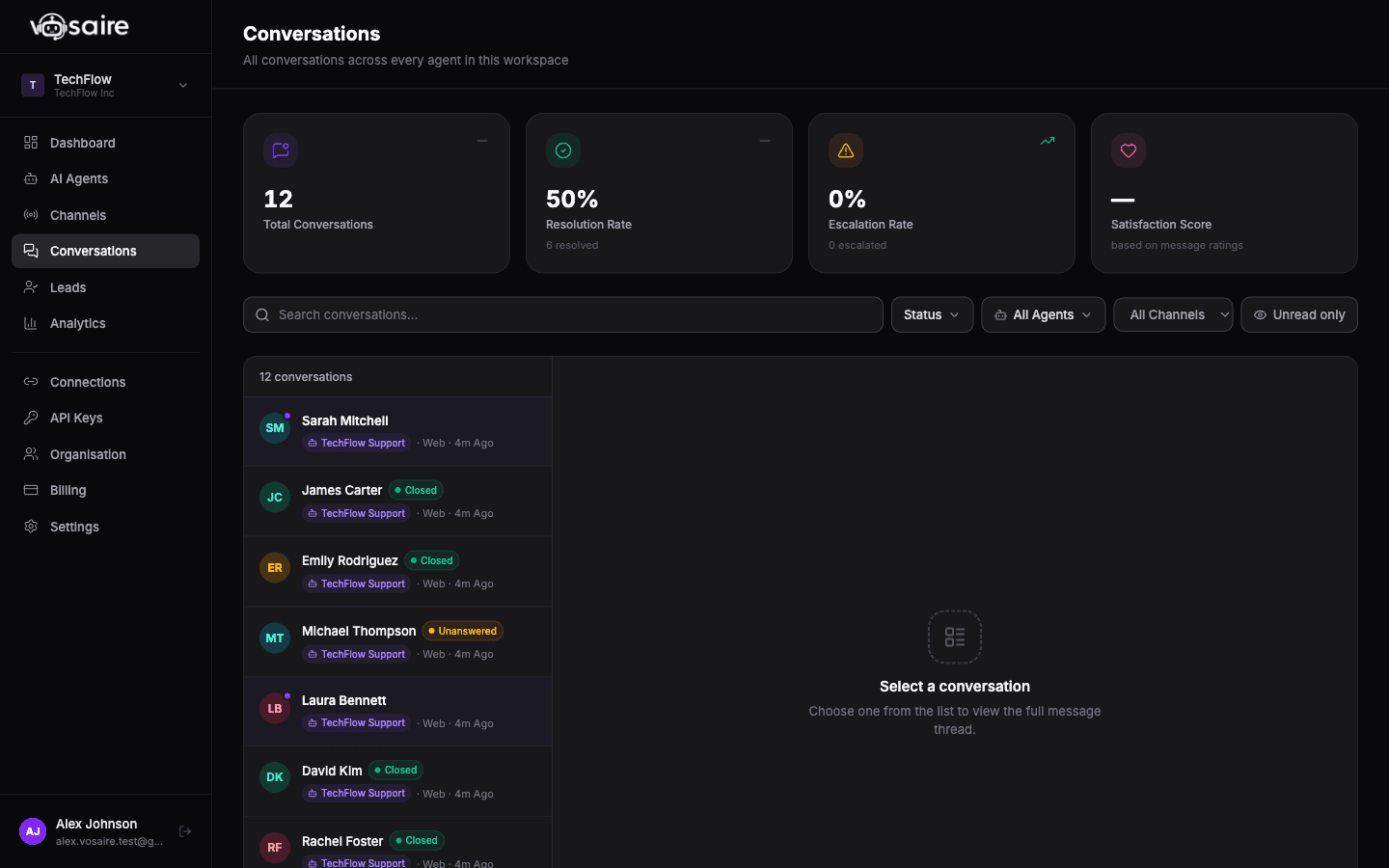
Getting to Conversations
Click Conversations in the sidebar. You'll see a list of all conversations across all agents and channels, sorted by most recent by default.
What you see in the list
Each row shows:
- The visitor's name or identifier (email address for Gmail channels, username for Telegram, "Visitor" for anonymous web chats)
- The first line of the most recent message
- Which channel the conversation came through (Gmail, Telegram, Widget, etc.)
- The current status (Open, Resolved, Archived)
- When the last message was sent
Filtering conversations
Use the filters at the top of the list to narrow down what you're looking at:
By agent — if you have multiple agents, select one to see only that agent's conversations.
By channel — filter to a specific channel type (Gmail, Telegram, Widget, API).
By status — Open, Resolved, or Archived. Conversations start as Open and you can move them from there.
By date — a date range picker to find conversations from a specific period.
Searching
The search bar at the top searches through message content and contact information. It works on the full conversation text, not just the preview snippet visible in the list.
Opening a conversation
Click any row to open the full conversation. The conversation detail opens on the right side (or full-screen on mobile).
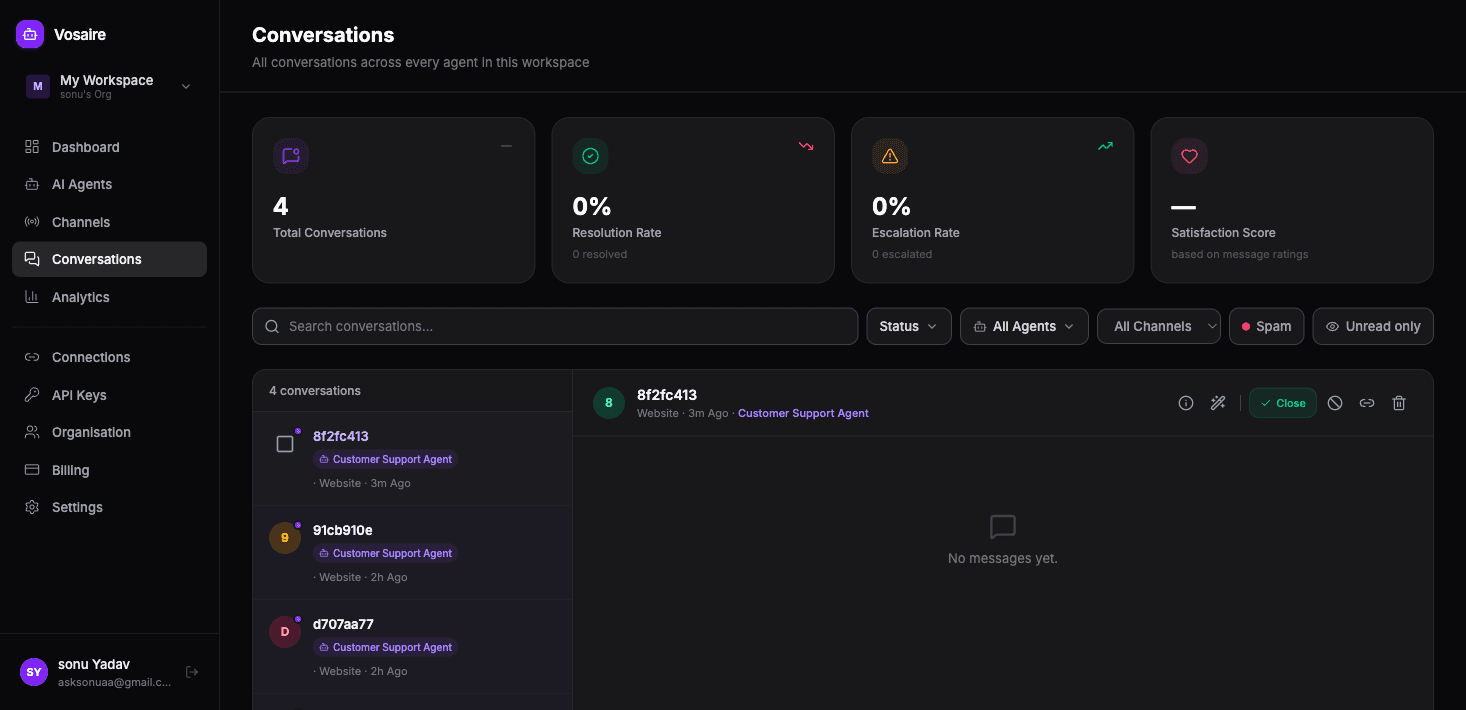
In the conversation detail you can see the full message history, the agent's responses, any training labels applied, and contact information for the visitor.
Exported conversations
If you need to export conversation data for reporting or handoff to another system, use the Export option in the filter menu. This gives you a CSV of conversation data for the selected time range.