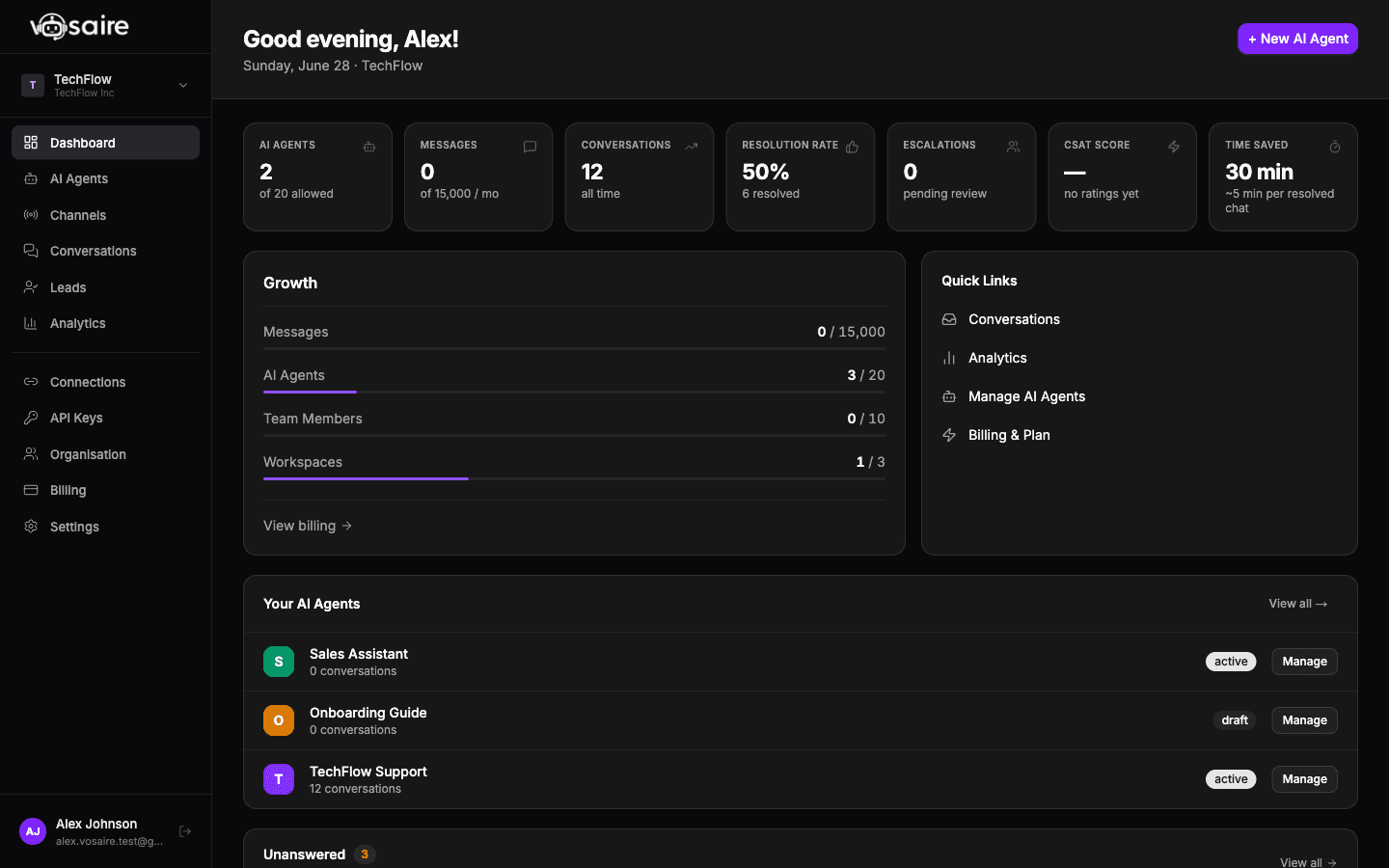
When you first log in you'll land on the dashboard home. Here's what you're looking at.
The sidebar
The left sidebar is your main navigation. The links you'll use most:
- AI Agents — create and manage your agents
- Channels — see all channels across all agents in one place
- Conversations — your inbox of all customer conversations
- Analytics — conversation volume, resolution rate, and other metrics
- Connections — manage OAuth connections (Gmail, Notion, etc.)
- Organisation — team members, organization settings
- Billing — plan details and usage
At the top of the sidebar is your workspace selector. If you have multiple workspaces, you can switch between them here.
The home screen
The dashboard home gives you a snapshot of what's happening:
Stats row — shows your key numbers at a glance:
- AI Agents (how many you have / your plan limit)
- Messages (used this month / monthly limit)
- Conversations (all time)
- Resolution Rate
- Escalations pending review
- CSAT Score
- Time Saved estimate
Plan card — shows your current plan and usage bars for messages, agents, team members, and workspaces.
Your AI Agents — a quick list of your agents with their conversation counts. Click "Manage" to jump to an agent's configuration.
Unanswered — questions your agent couldn't answer. This is useful for spotting knowledge gaps and knowing what to add to your sources.
Recent Conversations — the last few conversations, with links to view them in full.
Finding things quickly
A few things that aren't obvious at first:
- Channel settings live inside each agent (go to an agent → Channels tab), not in the top-level Channels page. The Channels page just shows all channels across all agents in one view.
- To add knowledge sources, go to an agent → Knowledge tab.
- The Connections page (Gmail OAuth, Notion, etc.) is separate from Channels. A connection is the authentication layer; a channel is where conversations happen.