
Getting the widget on your website is a one-step copy-paste. Here's exactly how.
Get the embed code
From your agent detail page, click the Embed button in the top right.
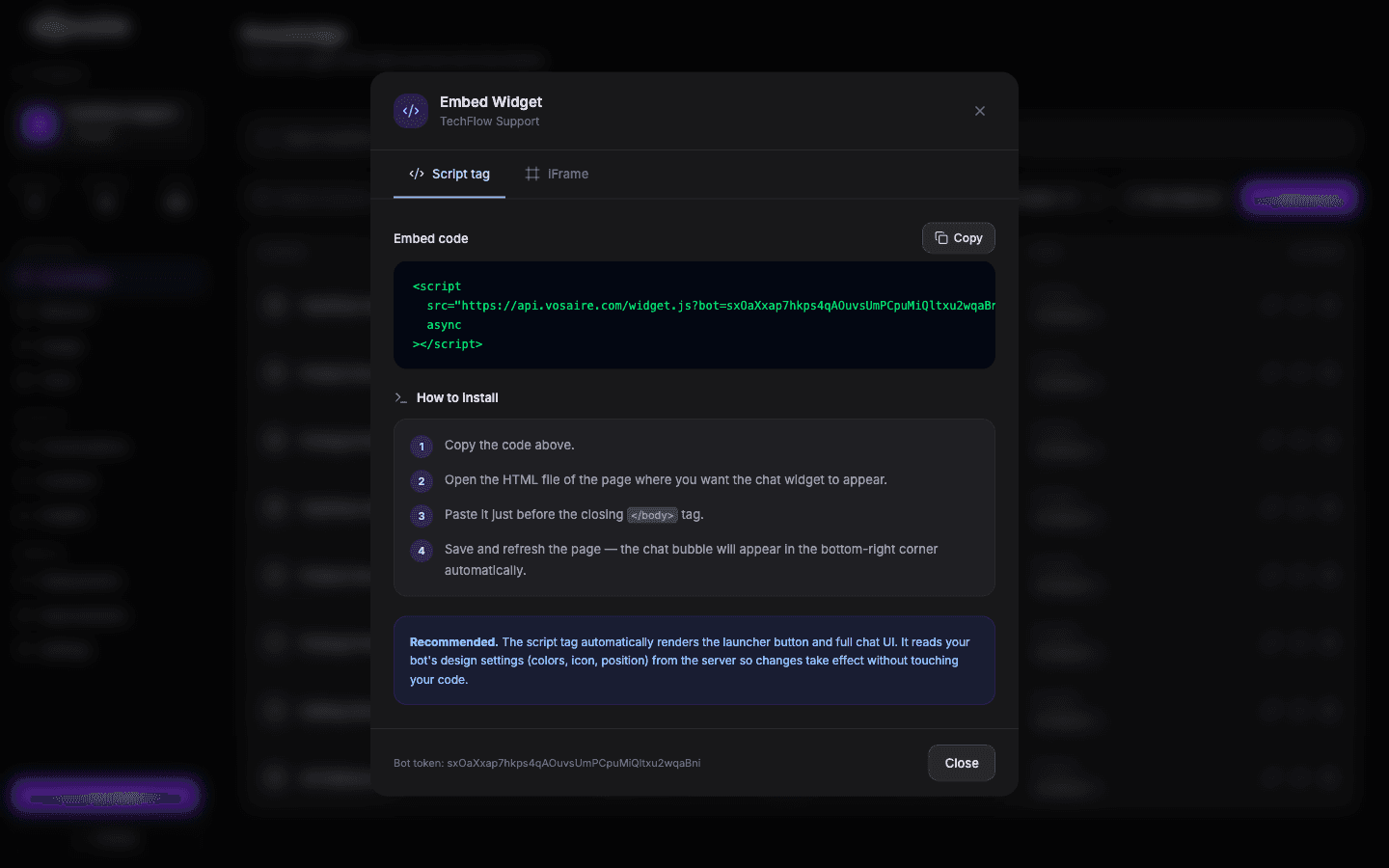
You'll see a <script> tag. Copy it.
Where to paste it
Paste the script tag into your website's HTML, just before the closing </body> tag. This works on any website that lets you add custom HTML or JavaScript.
WordPress
Option 1 — Theme file: Appearance → Theme File Editor → footer.php. Find </body> and paste just above it.
Option 2 — Plugin: Install "Insert Headers and Footers" or "WPCode", paste the script in the Footer section. No coding required.
Shopify
Online Store → Themes → Actions → Edit Code → theme.liquid. Find </body> (usually near the bottom) and paste just above it. Save.
Webflow
Project Settings → Custom Code → Footer Code. Paste the script and save. Publish your site.
Wix
Add → Embed → Custom Code. Create a new custom code element, paste the script, set it to load in the Body - End position.
Squarespace
Settings → Developer Tools → Code Injection → Footer. Paste and save.
Framer
Site Settings → General → Custom Code → End of <body>. Paste and publish.
Static HTML sites
Open your HTML file in a code editor. Find </body> and paste the script above it.
Testing it
After adding the code, open your website in a browser. You should see a chat bubble appear in the corner (bottom-right by default). Click it to start a conversation.
If the widget doesn't appear:
- Make sure the script is in the
<body>, not the<head> - Open the browser console (F12 → Console) and look for JavaScript errors
- Disable any ad blockers or privacy extensions and reload — some block scripts from unknown domains
- Test in an incognito window to rule out extensions
The widget on mobile
The widget works on mobile browsers by default. If it's covering important content on small screens, you can adjust its position or hide it on mobile via the Design tab's Custom CSS field.
Multiple pages vs. single page
The embed code works site-wide — paste it once in your layout template and it appears on every page. You don't need to add it to each page individually.
If you want the widget to only appear on specific pages (e.g. only on the pricing page), use a script tag with a condition:
<script>
  if (window.location.pathname === '/pricing') {
    var s = document.createElement('script');
    s.src = 'https://cdn.vosaire.com/widget.js';
    s.setAttribute('data-AI agent-token', 'YOUR_TOKEN');
    document.body.appendChild(s);
  }
</script>