Managing connected channels
Go to Apps → Vosaire: AI Chatbot & Sales → Channels & Integrations → Channels. Before any channel is connected, this page shows the empty state below with a single Add a channel button.
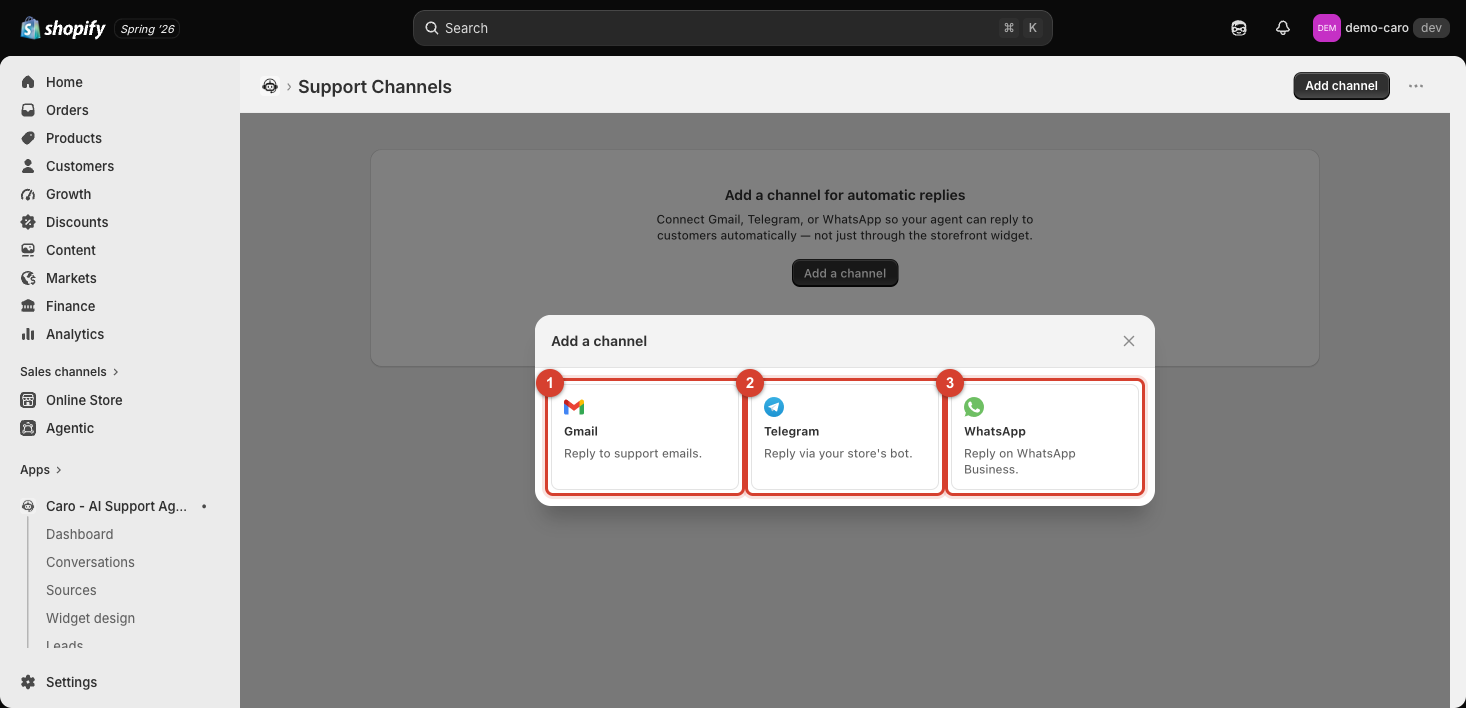
Once you've connected one
After connecting Gmail, Telegram, or WhatsApp, that channel appears as a row on this page — following the same list pattern used throughout the app (see the row-based layout on Sources or Actions for the equivalent pattern elsewhere). From there you can typically reconfigure the connection (e.g. switch WhatsApp's Reply mode between Auto-reply and Draft) or disconnect it entirely.
Multiple channels at once
You aren't limited to one channel — you can connect Gmail, Telegram, and WhatsApp simultaneously. All of them route into the same Conversations list and use the same training data, Actions, and behavior settings, so there's no need to configure your agent separately per channel.
Disconnecting a channel
Disconnecting stops Vosaire from picking up new messages on that channel — existing conversation history isn't deleted, but new incoming messages there will need to be handled another way (manually, or by reconnecting) until you reconnect it or connect a replacement.
If a connection breaks
Channels that rely on external credentials (a Telegram bot token, a WhatsApp access token) can stop working if that credential is revoked or expires on the provider's side — if replies suddenly stop going out on a channel that was working before, check whether the underlying token is still valid before assuming something changed on Vosaire's end. See Troubleshooting & FAQ for more.