Connecting Gmail
Go to Apps → Vosaire: AI Chatbot & Sales → Channels & Integrations → Channels → Add a channel → Gmail.
Gmail auto-reply is invite-only during beta
Google requires a security review before any app can automate Gmail replies, and that review is still in progress — so a Gmail address has to be manually whitelisted before it can connect. Click Request Gmail access and email the Gmail address you want to connect; it's typically whitelisted within 24 hours.
Setup
Once your address is whitelisted, connecting is a standard Google sign-in, not a manual API key setup.
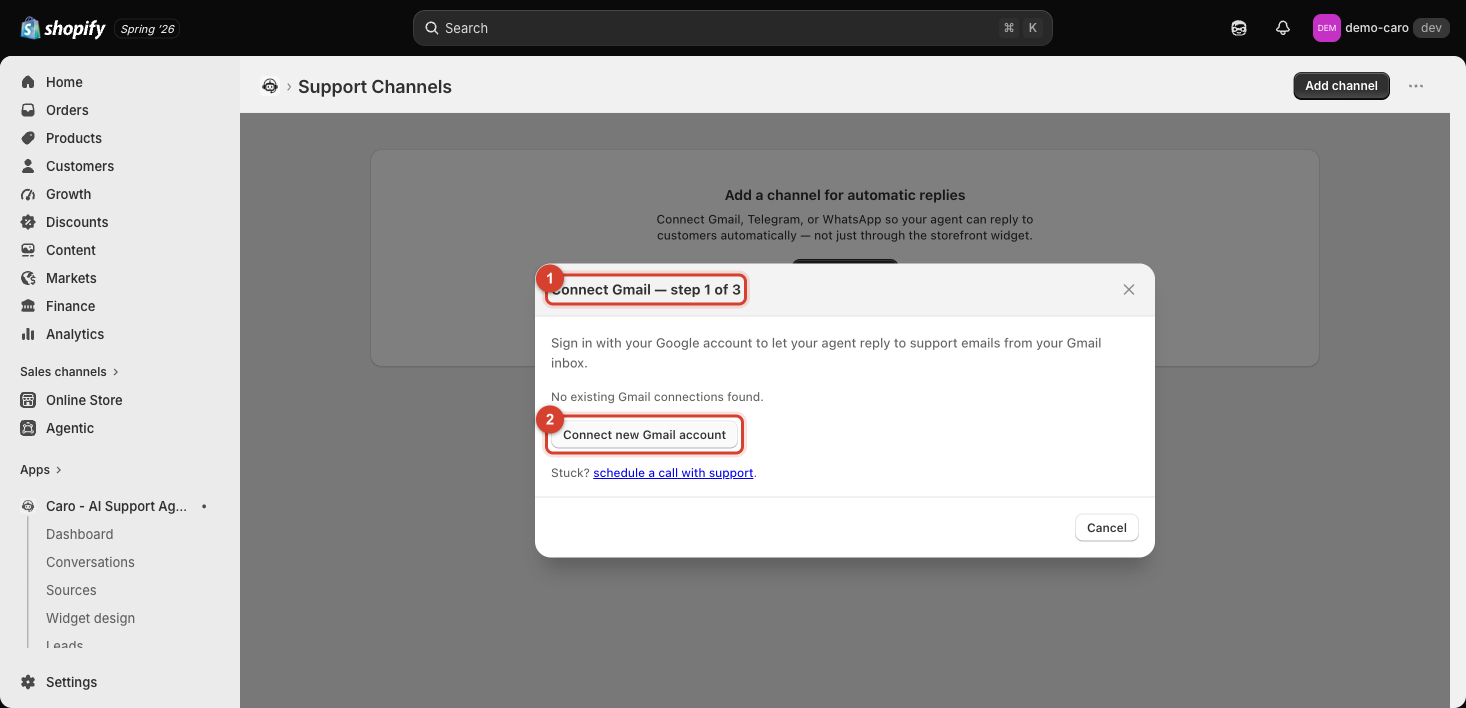
- Click Connect new Gmail account.
- Sign in with the Google account for the inbox you want Vosaire to reply from.
- Grant the requested permissions.
The dialog is labeled "step 1 of 4" — after signing in, you'll be walked through the remaining steps (typically confirming which inbox/label to watch and how replies should be sent).
If you get stuck
The dialog includes a "schedule a call with support" link that opens a pre-filled email to support@vosaire.com — use this if the Google sign-in doesn't complete, or if you're not sure which Google account to use for a shared support inbox.
What happens after connecting
Once connected, incoming emails to that inbox generate conversations that Vosaire can respond to using the same training data and actions as the widget — visible in Conversations alongside widget and other channel conversations.