Connecting WhatsApp
Go to Apps → Vosaire: AI Chatbot & Sales → Channels & Integrations → Channels → Add a channel → WhatsApp. This is the most involved of the three channel setups, since WhatsApp Business requires its own Meta Business infrastructure that isn't something Vosaire can create for you.
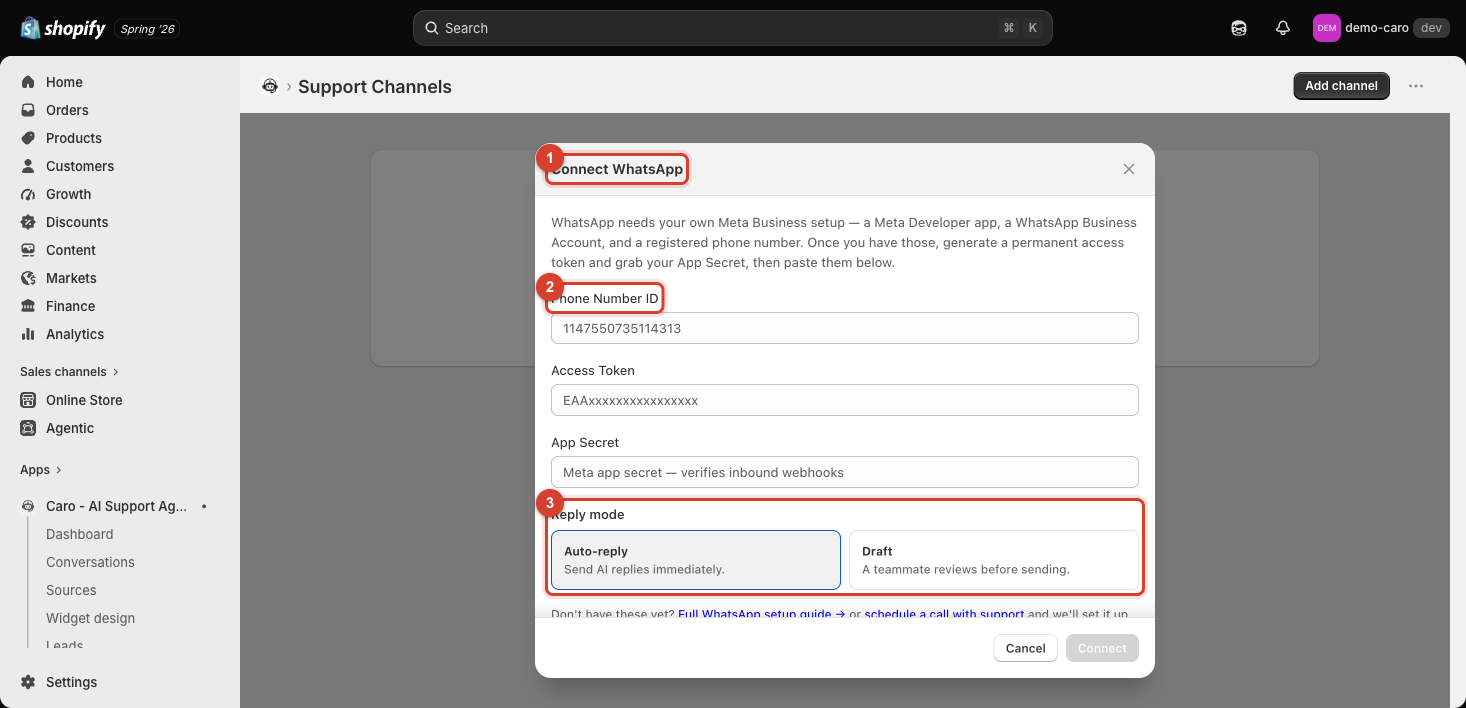
What you need before you start
- A Meta Developer app
- A WhatsApp Business Account
- A registered phone number
- A permanent access token and your App Secret, generated from that Meta setup
If you don't have these yet, use the "Full WhatsApp setup guide →" link in the dialog (vosaire.com/docs/whatsapp-channel), or the "schedule a call with support" link to get help setting it up directly.
Filling in the form
| Field | Where it comes from |
|---|---|
| Phone Number ID | Your WhatsApp Business Account's registered number, from Meta |
| Access Token | The permanent access token you generated in your Meta app |
| App Secret | Used to verify inbound webhooks are really coming from Meta |
Reply mode
Choose how Vosaire's replies actually get sent:
- Auto-reply — sends AI replies immediately, with no human step in between.
- Draft — a teammate reviews the reply before it sends.
For a brand-new WhatsApp connection, Draft is the safer starting point until you've confirmed Vosaire's replies are reliably accurate on this channel; switch to Auto-reply once you're confident.
One more step after connecting
The dialog warns that after you click Connect, you'll need to go back to your Meta App Dashboard one more time to paste in a webhook URL and verification token that Vosaire generates — the next step will show you exactly what to paste where.