Quick tour of the Dashboard
When you open Vosaire from your Shopify admin (Apps → Vosaire: AI Chatbot & Sales → Dashboard), you land on a single page that tells you whether Vosaire is working, how it's being used, and what's left to finish setting up.
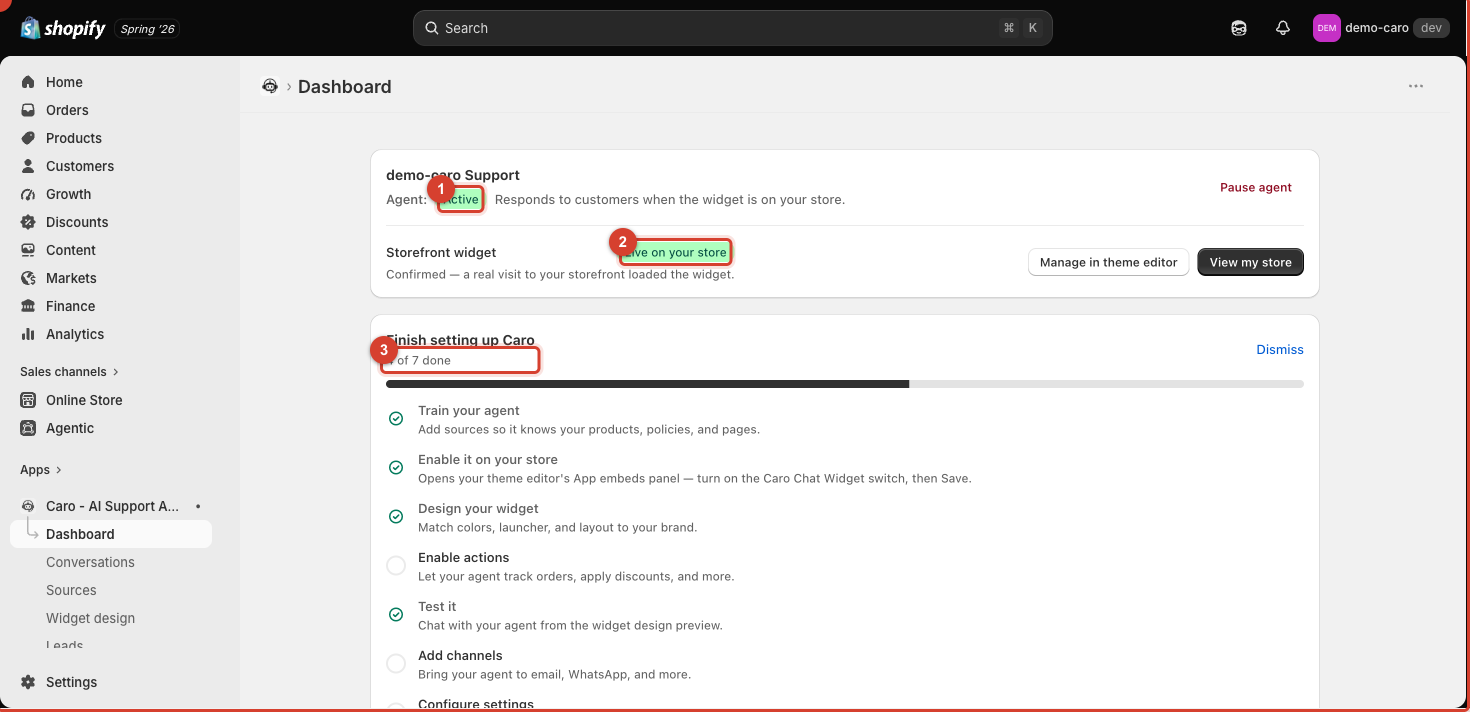
1. Agent status
The Agent row shows whether your AI agent is switched on.
- Active (green) — Vosaire will respond to customers when the chat widget is on your store.
- If you ever need to stop Vosaire from replying (for example during a big sale when you want a human to handle everything), use the Pause agent button in the top-right of this card. Pausing does not remove the widget from your store — it just stops the AI from answering. See Pausing and resuming your agent.
2. Storefront widget
The Storefront widget row confirms whether the chat bubble is actually live on your storefront.
- Live on your store (green) means Vosaire has confirmed a real visit to your storefront loaded the widget — this isn't just a setting, it's a live check.
- If this says the widget isn't detected yet, use Manage in theme editor to open the Shopify theme editor's App embeds panel and turn on the Vosaire Chat Widget block, or View my store to check your storefront directly. See Installing the chat widget on your storefront.
The "Finish setting up Vosaire" checklist
Every new store sees this checklist below the cards above, with a progress bar (e.g. "4 of 7 done") — it's not pictured in the screenshot above because that example store has already completed every step:
| Step | What it does |
|---|---|
| Train your agent | Add sources so Vosaire knows your products, policies, and pages |
| Enable it on your store | Turns on the Vosaire Chat Widget block in your theme |
| Design your widget | Match colors, launcher, and layout to your brand |
| Enable AI Tools | Let your agent track orders, apply discounts, and more |
| Test it | Chat with your agent from the widget design preview |
| Add channels | Bring your agent to email, WhatsApp, and more |
| Configure settings | Fine-tune tone, escalation, and behavior |
Each item links directly to the relevant page — you can complete them in any order. Once you're happy with your setup, you can Dismiss the checklist; it won't affect anything else in the app.
Further down the page
Below the checklist, the Dashboard also shows:
- Usage this month — how many AI replies and trained pages you've used against your plan's limits.
- Channels — which channels (email, WhatsApp, etc.) are connected, with a shortcut to connect your first one.
- Go to — quick links to Conversations, Sources, Widget design, AI Tools, Analytics, and Settings.
- Plan — your current plan and trial end date, with an upgrade shortcut.
- Business impact — conversations handled and estimated savings, based on your configured cost-per-reply.
- At a glance — a snapshot of total conversations, active training sources, and when Vosaire was installed.
These are covered in detail in Understanding "Usage this month" and Reading your Business impact numbers.