Installing the chat widget on your storefront
The widget isn't added through Vosaire's own app pages — it's installed as a theme app embed, the standard way Shopify apps add storefront elements.
The fastest way in
From the Dashboard, click Manage in theme editor on the Storefront widget row — this opens your theme editor with the App embeds panel already targeted at Vosaire. You can also get there manually via Online Store → Themes → Customize → app embeds icon (the grid icon in the top toolbar).
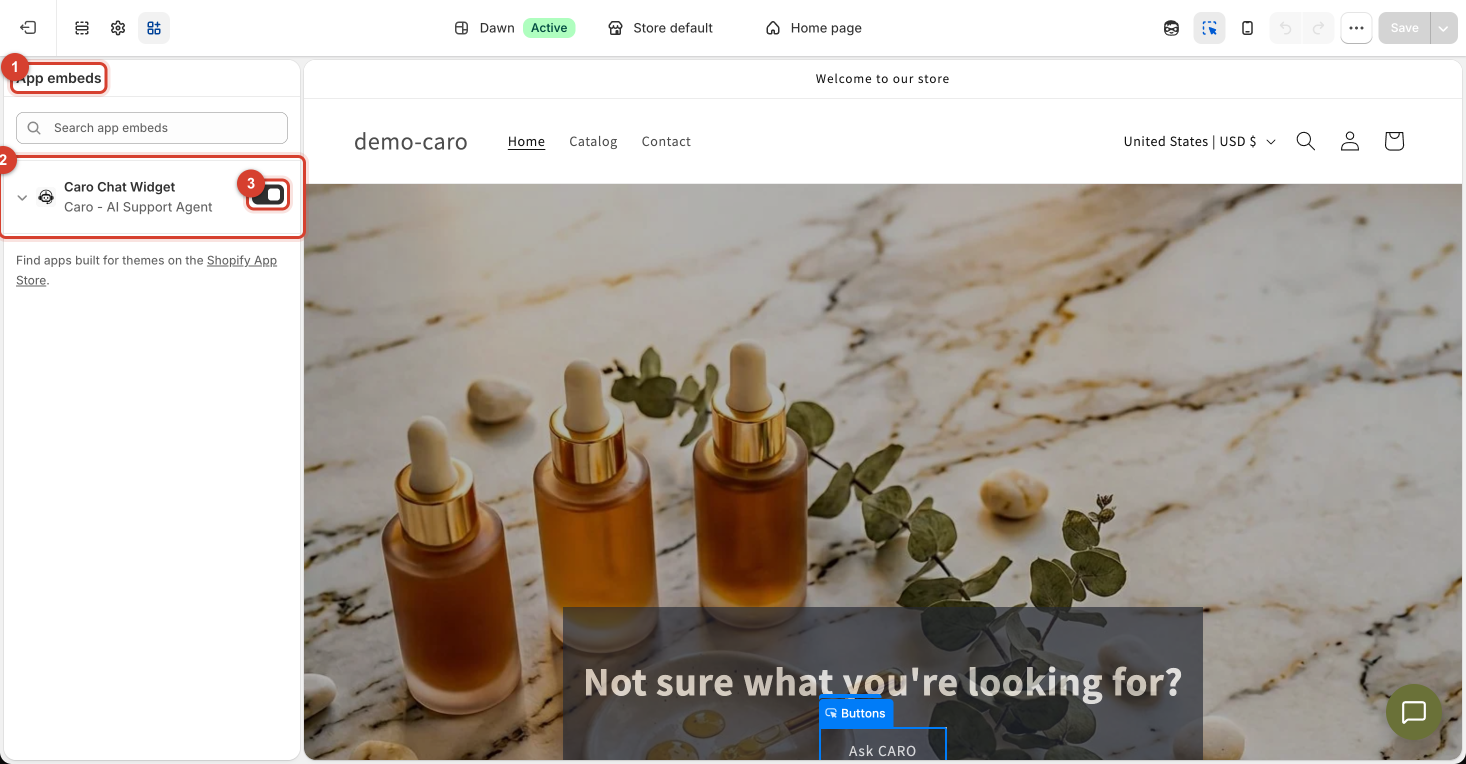
Turning it on
- Open the App embeds panel (the grid-shaped icon next to the sections and theme-settings icons).
- Find Vosaire Chat Widget under Vosaire - AI Support Agent.
- Toggle it on.
- Click Save in the top-right of the theme editor.
Once enabled, the live preview immediately shows the chat launcher bubble in the corner of your storefront — exactly as customers will see it.
Confirming it's really live
The Dashboard's Storefront widget row doesn't just reflect whether you toggled the embed on — it says "Confirmed — a real visit to your storefront loaded the widget," meaning Vosaire has verified the widget actually rendered on a real page load, not just that the setting is enabled. If that row doesn't show "Live on your store" after you've saved the embed, visit your storefront directly (View my store) to trigger that confirmation.
Why this is a separate step from everything else in Vosaire
Every other Vosaire setting lives inside the app's own admin pages, but the storefront embed is theme-level by design — it's what lets you control exactly where in your theme's app-embed order the widget loads, same as any other Shopify app that adds a storefront element (a reviews widget, a live-chat tool, etc.).