Blog / ChatGPT Ads / Guides
October 24, 2026
How to Set Up ChatGPT Ads on Shopify (2026 Guide)
To run ChatGPT Ads on a Shopify store, you need four things connected: an approved ChatGPT Ads Manager account, OpenAI's Measurement Pixel on your storefront, a Conversions API key sending purchases from a server, and a product feed that refreshes at least daily. You can connect them with OpenAI's free Shopify app, with separate pixel and feed apps, or by hand. Whichever route you pick, the step most people miss is the last one: creating a conversion event and selecting it on the campaign, so ChatGPT knows what a sale looks like.
This guide covers what each piece does, the options on Shopify, a step-by-step setup, and the mistakes that make your numbers wrong. If you want to know what it costs and what results to expect first, read ChatGPT Ads for Shopify: cost, results and what to expect.
What are ChatGPT Ads?
ChatGPT Ads (OpenAI calls the platform OpenAI Ads) are paid placements shown inside ChatGPT conversations, labelled as sponsored and separate from ChatGPT's own answer. A shopper asking "what's a good waterproof jacket for wide shoulders?" might see your product as an ad below the answer.
A quick timeline, so you know how new this is:
- February 2026: a US pilot with a small group of large advertisers (ppcone.cz).
- May 2026: self-serve Ads Manager opened at ads.openai.com in the US.
- September 2026: OpenAI released a free ChatGPT Ads app for Shopify (Shopify App Store).
- October 2026: OpenAI said ads were available in 89 countries and more than 100,000 advertisers had run campaigns (The Next Web). Self-serve access doesn't cover every one of those countries, so check Ads Manager's availability list for yours.
Paid ads are not the same as being recommended by ChatGPT. Organic mentions come from your product data, your pages and what other sites say about you; we cover that in how to get your Shopify store recommended by ChatGPT. Ads are the paid shortcut, and they run side by side with organic answers.
The four connections (and one optional)
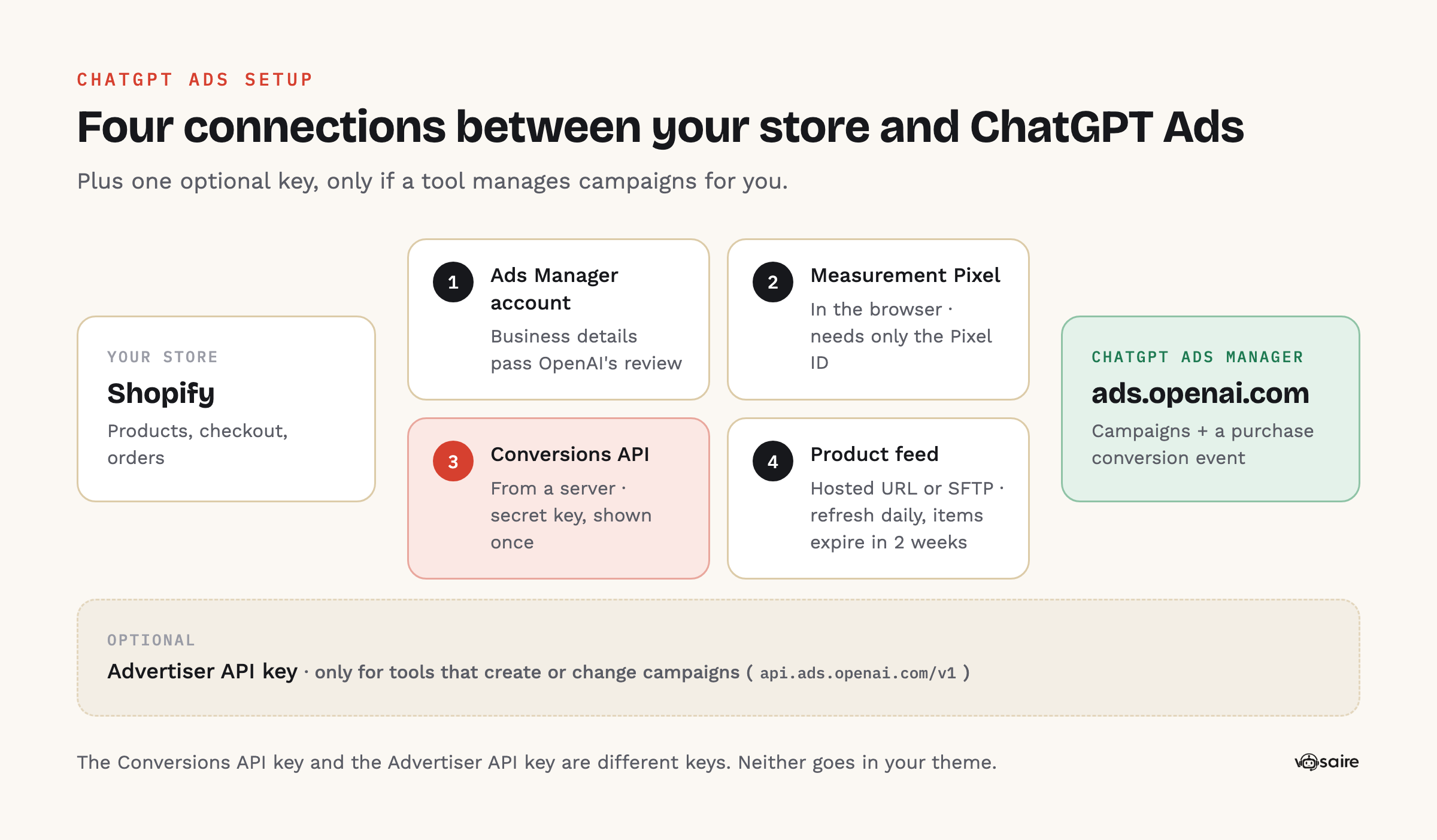
- An Ads Manager account that has passed review. You sign up at ads.openai.com with your business details. OpenAI reviews new accounts before ads can run, and its help center says it can't speed up account or ad reviews. Advertisers report waits from a couple of days to about two weeks, so start this first.
- The Measurement Pixel. A browser script that records what shoppers do on your store after clicking an ad (page views, add to cart, checkout, purchase). It's tied to a Pixel ID from the Conversions tab in Ads Manager.
- The Conversions API (CAPI). The same events, sent from a server instead of the browser, so purchases still count when an ad blocker or a browser privacy setting stops the pixel. It needs a Conversions API key. OpenAI's docs are firm that this key is for server use only: "Send events to the Conversions API from your server only" (OpenAI developer docs). Integration guides consistently report that Ads Manager shows the key once, so copy it somewhere safe the moment you create it.
- A product feed. Your catalog (titles, prices, images, stock, links) in a file OpenAI can read, so you can build ads from products. Ads Manager accepts a one-off CSV/TXT upload, a hosted URL or SFTP. OpenAI's help center notes that feed items expire after 2 weeks, which is why it recommends a hosted URL or automated SFTP rather than manual uploads. In practice, refresh it at least daily so prices and stock stay right.
- Optional: an Advertiser API key. Only needed if a tool will create or change campaigns for you through OpenAI's Advertiser API (
https://api.ads.openai.com/v1). It's a different key from the Conversions API key. If you manage campaigns by hand in Ads Manager, you can skip it.
Your options on Shopify
There's no single right way. Here's how the routes compare:
| Route | What it connects | Good for | Watch out for |
|---|---|---|---|
| OpenAI's ChatGPT Ads app (free) | Account, pixel, catalog sync, campaigns from inside Shopify | Getting started with no code | Merchants report sync problems; see below |
| Pixel / CAPI apps | Pixel and server-side events | Stores that want reliable purchase tracking | Must not run alongside another pixel on the same Pixel ID |
| Feed apps | A hosted feed URL that refreshes on a schedule | Large or fast-changing catalogs | Check how often it regenerates, and what it does with variants |
| Manual | Custom pixel in Shopify, your own CAPI server, your own feed | Developers, or stores with an existing data pipeline | You own every failure |
A fair word on OpenAI's own app
OpenAI's ChatGPT Ads app is free and is the official route: it connects your Ads Manager account, adds the OpenAI Pixel, syncs your catalog and lets you build campaigns without leaving Shopify. It's a sensible first try.
It's also young. As of 24 October 2026 its listing shows 2.2 stars from 21 reviews. The most common complaints are products that don't sync (with no obvious way to refresh the feed), an interface reviewers call clunky, and ads that felt expensive for the sales they brought. Some reviewers say they switched to a separate feed app. Install it, but check that your products actually arrive in Ads Manager before you build campaigns on top of it.
OpenAI's own troubleshooting list for missing products: confirm the app is connected to the right Ads Manager account, wait for the sync to finish (time depends on catalog size), check products are active and available, confirm the pixel is connected, refresh Ads Manager, and use Chrome or Safari. If that fails, OpenAI points to ads-support@openai.com.
Step-by-step setup
Allow an afternoon for the setup itself, plus the account review wait.
Step 1: Create and verify your Ads Manager account
- Go to ads.openai.com and sign up with your business email.
- Enter your business name, address and website exactly as they appear on your store and legal documents. Mismatches are the most common reported cause of slow reviews.
- Add a payment card. Billing is after the fact, by card.
- Wait for approval. Check whether your product category is restricted (regulated categories such as alcohol, tobacco, gambling and health have extra rules) before you spend time on the rest.
Step 2: Create your Pixel ID and Conversions API key
- In Ads Manager, open the Conversions tab and create a pixel (a data source). Note the Pixel ID.
- Create a Conversions API key for that pixel. Copy it straight into a password manager: you won't see it again.
- Decide now which one thing will send events for this Pixel ID (an app, or your own code). See "Avoid double-counting" below.
Step 3: Install the pixel on Shopify
Pick one:
- With OpenAI's app: install it, connect your Ads Manager account, and choose or create the OpenAI Pixel in the app. It handles the storefront events.
- With a pixel app: paste your Pixel ID (and CAPI key, if the app sends server events) into the app's settings.
- By hand: in Shopify admin, go to Settings → Customer events → Add custom pixel, paste OpenAI's pixel snippet with your Pixel ID, and map Shopify's events (page viewed, product added to cart, checkout started, checkout completed) to OpenAI's (
page_viewed,items_added,checkout_started,order_created). Set the pixel's customer privacy permissions; where consent is required, Shopify only runs it for visitors who agree.
Step 4: Send purchases server-side
The Conversions API endpoint is POST https://bzr.openai.com/v1/events?pid=YOUR_PIXEL_ID, with your CAPI key as a Bearer token (OpenAI developer docs). Each event needs an id, a type such as order_created, a millisecond timestamp from the last 7 days, and the page URL for web events.
On Shopify, "by hand" means a small server that listens to the orders/create webhook and forwards each order. Most stores will use an app for this. Two rules either way:
- Never put the CAPI key in your theme or a browser pixel. Anyone can read code that runs in the browser.
- Use the same event ID in the pixel and the API (for example, the Shopify order ID). OpenAI deduplicates on Pixel ID + event name + event ID and keeps the first one it receives.
Step 5: Connect your product feed
- With OpenAI's app, wait for the catalog sync, then check in Ads Manager that the product count matches your active products.
- Without it, use a feed app or your own export that publishes a hosted URL (or uploads by SFTP) and regenerates at least once a day. Keep the same URL or file name every time; OpenAI's docs say to overwrite the latest snapshot rather than create new files.
- Spot-check five products: price, sale price, stock, image and link should match your store.
Feed quality matters as much as the connection. Clear titles, real variants and accurate categories help ads match the right questions; the product data section of our ChatGPT guide applies to ads too.
Step 6: Create a conversion event
This is the step people skip. Sending events to a pixel doesn't tell a campaign what counts as a result. In OpenAI's words, a conversion event setting "selects an event from a source; it does not send events itself" (OpenAI developer docs).
- In the Conversions tab, create a conversion event.
- Choose your pixel as the source and
order_created(a purchase) as the event. - Pick the attribution window. OpenAI's own example uses 30 days after an ad click.
Step 7: Select the conversion event on your campaign
- Create a campaign (a click campaign is the usual starting point) and select your purchase conversion event in its settings.
- Click and impression campaigns can track conversions without changing their objective. Conversion-bidding campaigns need exactly one active standard conversion event, and OpenAI's docs say it can't be changed after the campaign is created, so get it right first time.
- When you edit a campaign's conversion events later, the list is replaced, not added to. Re-select every event you want to keep.
Step 8: Test before you spend
- Place a real test order (or a 100% discount order) after visiting your store.
- Check that the event arrives. OpenAI's event monitoring shows a sample of recent events for testing; attributed conversions take longer to show in reports, often a day or two.
- Confirm the purchase appears once, not twice.
Avoid double-counting
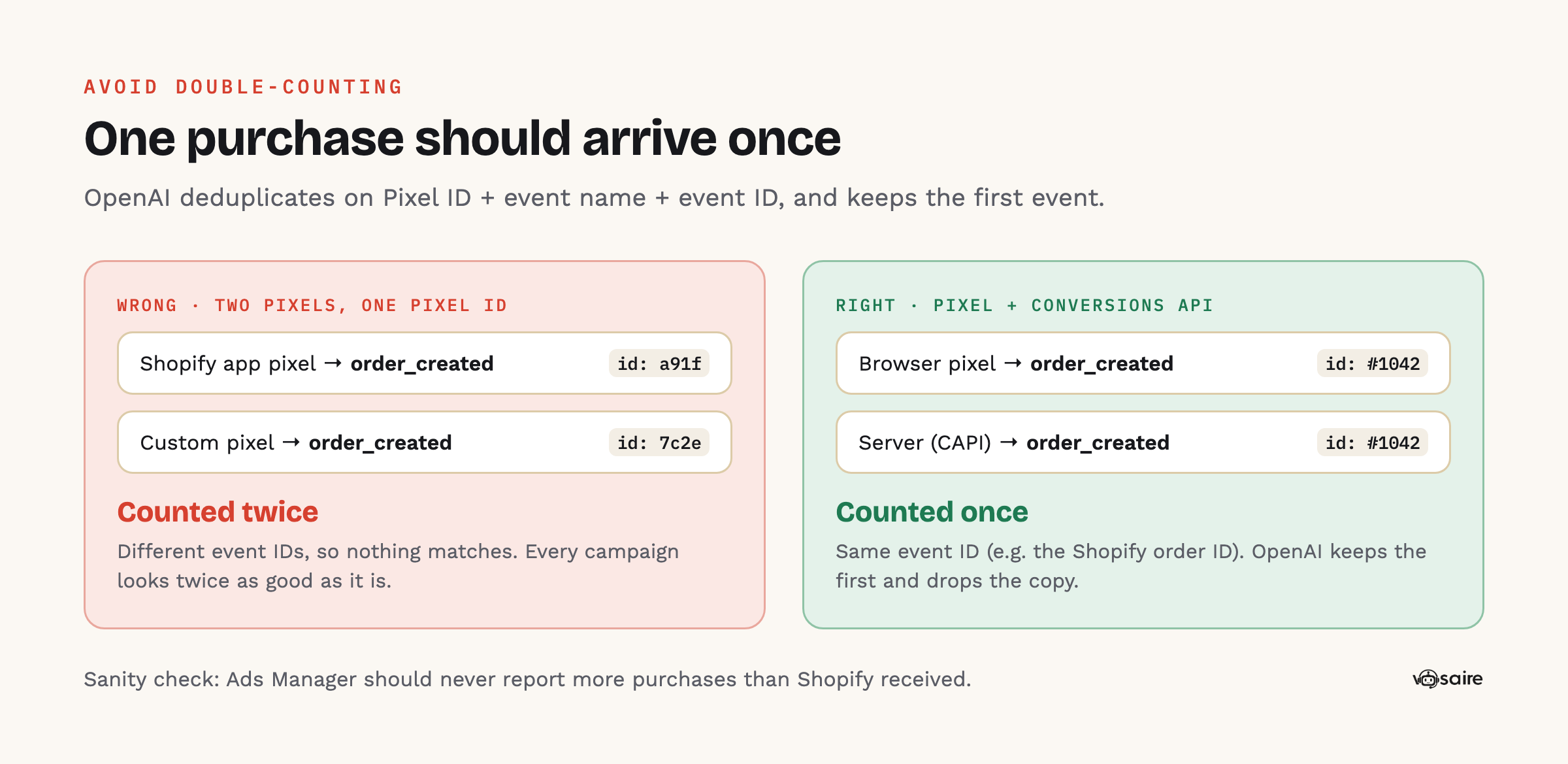
Double-counted purchases make every campaign look twice as good as it is, and you'll scale the wrong ones. The usual causes:
- Two pixels on the same Pixel ID. For example, OpenAI's app and a custom pixel and a pixel app, all firing
order_created. Each sends its own event ID, so deduplication can't match them. Pick one browser source per Pixel ID and remove the rest. - Pixel plus CAPI with different IDs. Running both is good, but only if they send the same event ID for the same purchase.
- Leftover theme code. Check
theme.liquidand checkout scripts for an old snippet from a previous test.
A quick sanity check: compare purchases reported in Ads Manager against Shopify orders from ChatGPT clicks over the same week. Ads Manager should never report more purchases than your store actually received. To see those orders on the Shopify side, use the methods in how to track ChatGPT traffic and sales in Shopify.
Setup checklist
- Ads Manager account approved, business details match your store
- Payment card added
- Pixel ID created; CAPI key saved in a password manager
- Exactly one browser pixel firing per Pixel ID
- Server-side purchases sent through the Conversions API, never from the browser
- Same event ID in pixel and CAPI for each order
- Product feed live, product count matches, refreshed at least daily
- Five products spot-checked for price, stock, image and link
- Purchase conversion event (
order_created) created - Conversion event selected on every campaign
- Test order seen once, not twice
- Consent settings configured for the custom pixel, if you use one
FAQ
Is the ChatGPT Ads Shopify app free?
Yes, the app is free to install. You pay OpenAI for the ads themselves, billed to the card in your Ads Manager account.
Do I need the Conversions API, or is the pixel enough?
The pixel alone works, but it misses purchases when browsers block it. Adding the Conversions API makes purchase counts more complete, which matters once you bid for conversions. It's worth doing before you scale spend.
Do I need a product feed to run ChatGPT Ads?
Not for every ad, but you need one to build ads from your products, and that's how most Shopify stores will want to run them. Without a refresh, feed items expire after two weeks.
Can I use the Conversions API key in my theme?
No. It's a secret meant for server use only. Anyone can read code that runs in a shopper's browser. The browser pixel only needs the Pixel ID.
Why does Ads Manager show more purchases than Shopify?
Usually because two sources send the same purchase with different event IDs, such as two pixels on one Pixel ID. Remove the duplicate source, or make the pixel and CAPI share the order ID as the event ID.
Can I use the free app and a pixel app together?
Only if they don't both send purchases to the same Pixel ID. If you want an app's server-side tracking, turn off the other source's purchase events for that Pixel ID, or use the app that does both.
Running it after setup
Setup is the part you do once. Running ChatGPT Ads well is the part that never stops: checking the feed still syncs, watching which products actually make money after costs, and pausing what doesn't before it burns budget.
That's the job Vosaire: ChatGPT AI Ads Agent does. It builds your product feed for every market and sends it daily, switches on the pixel and sends orders, checkouts and add-to-carts through the Conversions API with one shared event ID so nothing is double-counted, creates your ads by product, collection and country (paused until you launch), and shows profit product by product. An AI agent checks it all every morning and suggests changes with the reason, or makes them within the monthly budget and loss stop you set. There's a free plan; see how it works or the setup guide in our docs.