Blog / AI Chatbots & Agents / Guides
November 1, 2026
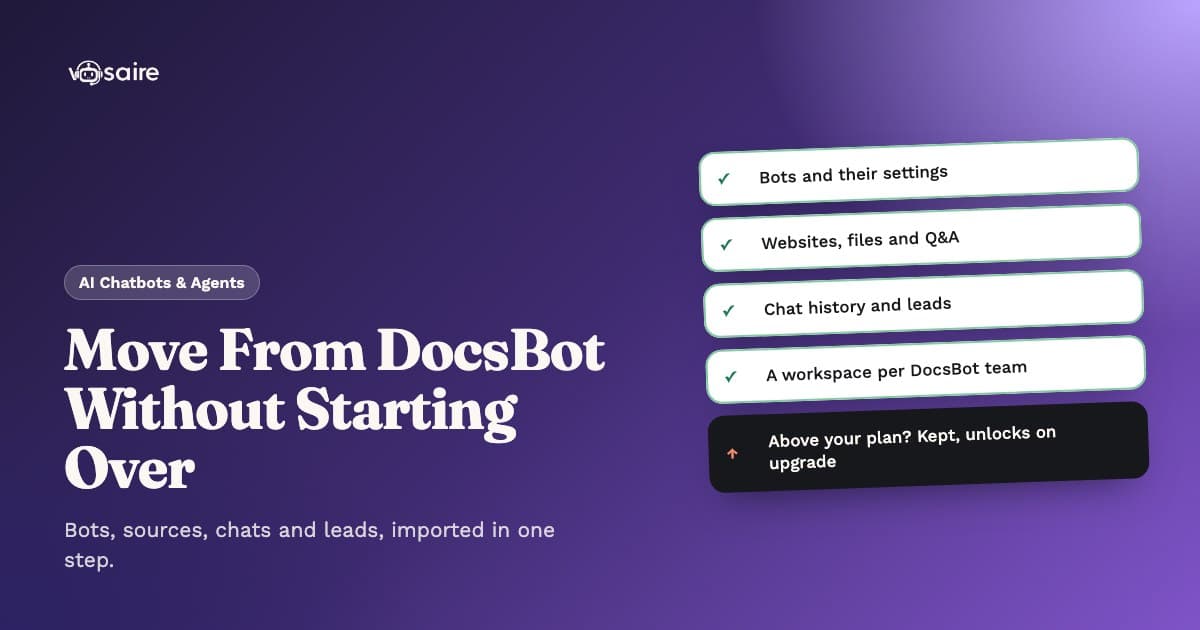
How to Migrate From DocsBot Without Rebuilding Your Chatbot
Most people who leave a chatbot tool don't leave because of one big problem. They leave because the price climbs, the bot limit pinches, or a client needs something the plan doesn't have. Then they look at the work of starting again and stay another year.
Switching away from DocsBot shouldn't mean re-adding every page, re-typing every Q&A pair and losing the leads you already collected. This guide covers what a migration should carry over, what to check before you move, and how to do it in a few minutes.
What you actually built in DocsBot
Before comparing tools, list what you'd lose if you started from zero. For most DocsBot accounts it's more than the bot itself:
- Sources: websites and sitemaps, single pages, Q&A pairs, uploaded PDFs and Word files, CSV files, RSS feeds.
- Settings: the custom prompt, language, colours, welcome message, input placeholder, launcher text, support link and glossary.
- History: the questions visitors asked, the answers the bot gave and how visitors rated them.
- Leads: names, emails and any other fields visitors left.
- Structure: if you're an agency, probably one DocsBot team per client.
A migration that only copies sources keeps the bot's knowledge and throws away everything that tells you how it performs and who it talked to. That history is often the most valuable part.
Compare plans on what you'll actually use
DocsBot prices by bots, source pages and AI credits. These are its public plans, checked on 1 November 2026 at docsbot.ai/pricing (monthly, US dollars):
| DocsBot plan | Price | Bots | Source pages | AI credits / month | Team users |
|---|---|---|---|---|---|
| Free | $0 | 1 | 50 | 100 | 1 |
| Personal | $49 | 1 | 5,000 | 5,000 | 1 |
| Standard | $149 | 3 | 15,000 | 15,000 | 5 |
| Business | $499 | 10 | 100,000 | 60,000 | 10 |
And Vosaire's website chatbot plans:
| Vosaire plan | Price | Bots | AI replies / month | Workspaces | Team |
|---|---|---|---|---|---|
| Free | $0 | 1 | 100 | 1 | 1 |
| Solo | $29 | 3 | 2,000 | 1 | 2 |
| Growth | $99 | 10 | 7,500 | 3 | 5 |
| Business | $199 | 30 | 15,000 | 10 | 15 |
Three things are worth knowing when you read these side by side:
- Credits aren't replies. On DocsBot, one standard message costs one credit on a 1x model, and bigger models cost more credits per message. On Vosaire, every answer the chatbot sends counts as one reply, whatever it takes to write it.
- Bots and workspaces scale differently. If you run a chatbot per client or per site, the bot count matters more than the message count. Vosaire's Growth plan has 10 bots at $99; DocsBot gets to 10 bots on its $499 Business plan.
- High volume? Add replies instead of jumping plans. If you send tens of thousands of messages a month on DocsBot's smallest AI models, its larger plans include more credits than our plans include replies. On Vosaire you can add 5,000 AI replies for $39 a month (DocsBot charges $49 for 5,000 credits), add bots for $9 each (DocsBot: $19), or ask for a custom plan. Check your monthly question count in DocsBot first, so you ask for the right amount.
Add-ons are monthly, like DocsBot's: they renew with your plan and can be removed any time. Once you're signed up, request them from Billing in the app; for a bigger setup, the custom plan section of the pricing page suggests a plan from your monthly questions, websites and clients. Either way we email an invoice link and update your account once it's paid.
The full side-by-side, including what each plan includes, is on the DocsBot alternative page.
How the Vosaire import works
Vosaire reads your DocsBot account through DocsBot's own API, so there's nothing to export or upload by hand:
- Create a free Vosaire account. No card needed.
- Paste your DocsBot API key. DocsBot shows it under API/Integrations. Vosaire uses the key only for the import and deletes it as soon as the import finishes.
- Pick what to bring. You see every bot in every DocsBot team the key can access, choose which bots to import, and decide how teams map to workspaces.
- Watch it arrive. Each bot shows a live list of what came over: settings, each source, chats and leads, marked imported, locked or skipped with the reason.
Your DocsBot account isn't changed in any way. You can run both side by side until you're sure.
What comes over
Here's what the import carries, item by item:
- Bot settings: name, description, custom prompt, language, colour, widget position, welcome message, input placeholder, launcher text, support link, the copy button and sources settings, and rate limits.
- Glossary: each DocsBot glossary word becomes a term in your Brand dictionary.
- Avatar: a custom bot icon is downloaded and stored with Vosaire.
- Sources: websites and sitemaps, single URLs, Q&A, PDF, Word and text files (up to 20 MB each), CSV files and RSS feeds. Files are copied into Vosaire, so nothing stays linked to DocsBot. WordPress and URL-list sources come over as the pages DocsBot already read.
- Chat history: up to the last 1,000 questions per bot, grouped back into the conversations they came from, with answers, ratings and the questions the bot couldn't answer.
- Leads: up to 5,000 per bot, each attached to the chat it came from, with the visitor's name, email and other fields.
Every source is read again by Vosaire rather than copied as raw text, so answers come from fresh content. YouTube sources aren't supported yet; they show as skipped, so you know exactly what didn't come over.
Agencies: one workspace per client
If you run DocsBot with a team per client, the import can keep that structure:
- Each DocsBot team becomes its own Vosaire workspace, named after the team.
- If you have only one team, you can rename your current workspace to match it.
- If your current workspace already holds another client's bots, new teams get workspaces of their own instead of mixing in.
Each workspace keeps its clients' bots, conversations and leads apart, and you can invite your team to the account.
When your plan is smaller than what you bring
This is where most migrations fail: you have five bots, the plan has one, and the tool refuses the rest. The Vosaire import brings everything anyway:
- You choose which bots go live within your plan. The rest are saved and locked, with their sources kept but not read.
- Workspaces beyond your plan are imported and locked too. You can open them and look around; their bots just aren't live.
- Source types your plan doesn't include (RSS on the Free plan, for example) are saved and locked rather than dropped.
- Upgrading unlocks everything automatically. Locked bots go live, their sources are read, and nothing needs importing again.
You can also switch which bot is live later from the Bots page, without deleting anything.
Importing again later
If you run the import a second time, bots you already brought over are marked "Already in Vosaire" and left unticked, so you don't end up with duplicates. Tick one if you do want a fresh copy, for example after making big changes in DocsBot.
A checklist before you cancel DocsBot
- Run the import and check each bot's list for anything marked skipped.
- Ask each live chatbot the five questions your visitors ask most, and compare the answers.
- Add the one-line embed code to your site, or follow the guide for your website builder.
- Check your leads and chats came over, and export them if you need them elsewhere.
- Cancel your DocsBot subscription, then delete the DocsBot team if you no longer need it.
Try it on your own DocsBot account
The quickest way to judge a migration is to run it on your real bots. Start on Vosaire's free plan, paste your DocsBot API key, and see exactly what comes over before you change anything on your site. The DocsBot alternative page has the full comparison, and website chatbot pricing shows every plan in your currency.
Running a Shopify store instead? See Vosaire vs DocsBot for Shopify, where the native Shopify app is the better fit.